Web UI overview
The Bor web UI is where administrators manage nodes, node groups, policies, bindings, users and roles. This page explains how to sign in, how the interface is laid out, what the Dashboard shows, how to manage your own account security, and how long a session lasts.
The web UI is served by bor-server on its web port
(server.enrollment_port; default 8443, 443 recommended for production),
for example https://bor.example.com/, or https://bor.example.com:8443/
on the default port. See
Server configuration for how to change the port
and TLS for the certificate the browser sees.
Sign in
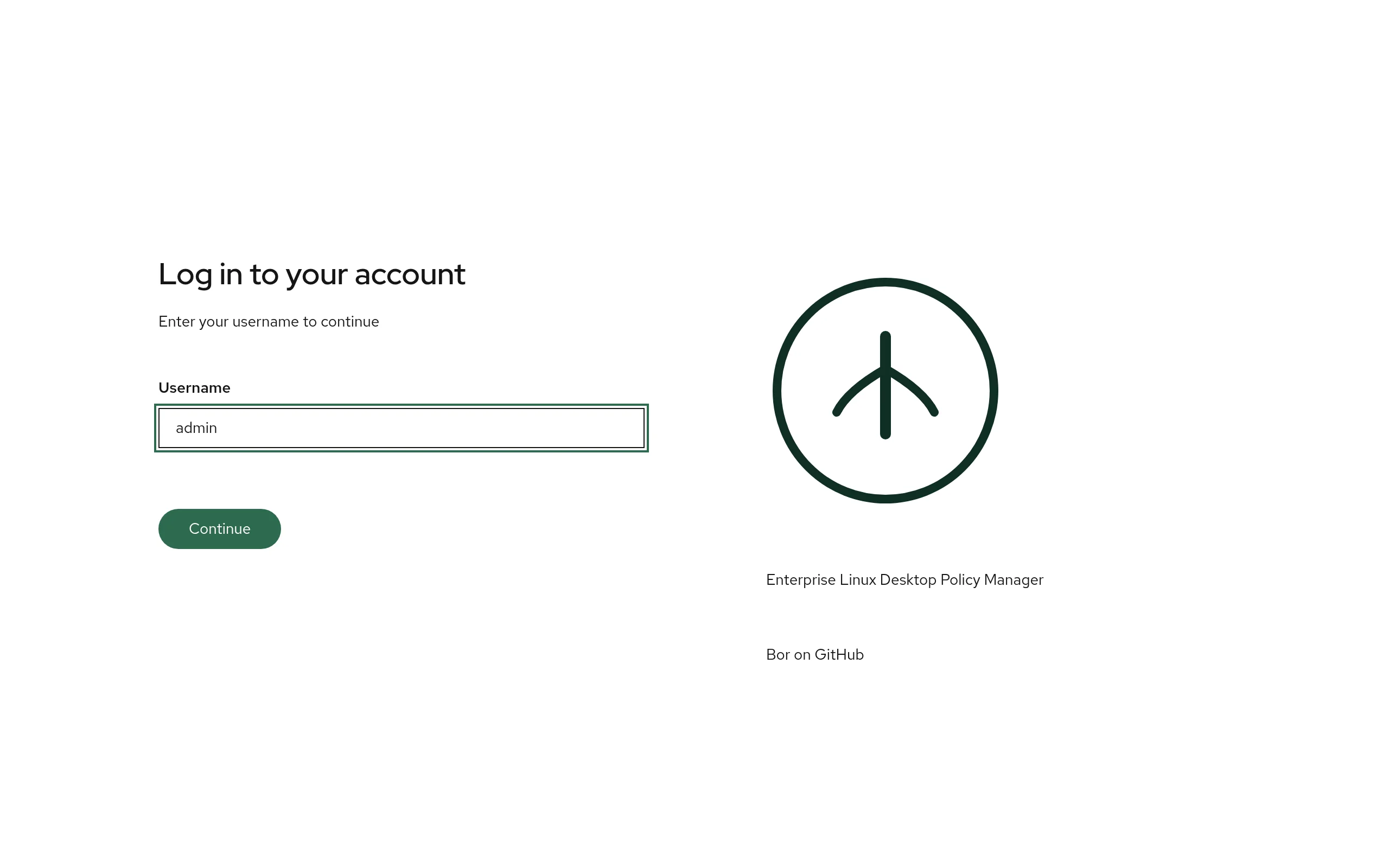
Bor uses a step-by-step sign-in form. You always enter your username first; the server then decides which step comes next for your account.
- Open
https://bor.example.com/in a browser. The Log in to your account page appears. - Enter your Username and select Continue.
-
Complete the step Bor asks for:
Step shown What to do Enter your password Type your Password and select Log in. A Caps Lock is on. hint appears when Caps Lock is active, and the eye button shows or hides the password. Enter your authenticator code Type the 6-digit Authenticator code from your authenticator app and select Verify. Bor then asks for your password. Verify your identity Select Authenticate with security key and touch your security key or confirm the passkey prompt. A security key completes the sign-in on its own; no password is asked. If you also have an authenticator app, Use authenticator code instead switches to the code step. Set up two-factor authentication Your organization requires multi-factor authentication (MFA) and your account has none yet. See MFA enrollment during sign-in. -
Select Back at any step to start over with a different username.
Order of the steps
For accounts that have MFA set up, Bor asks for the second factor before the password. Accounts without MFA go straight to the password step.
Local and LDAP accounts
Both account types use the same form:
- Local accounts are created in Settings -> Users and their password is stored by Bor.
- LDAP accounts are checked against your directory. When LDAP is enabled and the username does not exist in Bor yet, the password is verified against LDAP and the account is created automatically on its first successful sign-in. See LDAP.
A local account and an LDAP account can never share a username: if a local account exists with that name, an LDAP password is not accepted for it.
If your deployment has single sign-on options configured by an extension, they appear below the Continue button as Sign in with ... buttons. The community edition does not ship such an extension.
MFA enrollment during sign-in
When an administrator has turned on Require MFA for all users (see Settings), an account without a second factor must set one up before it gets a session:
- If Set up MFA while signing in is allowed, the sign-in form shows Set up two-factor authentication after the password step. Choose Set up an authenticator app (scan a QR code with FreeOTP, Aegis, Google Authenticator or a similar TOTP app) or Use a security key. Signing in finishes as soon as the factor is registered.
- If you already have a session when the requirement is switched on, the next page you load shows Two-factor authentication required. Select Set up two-factor authentication to enroll, or Log out.
If you lose your authenticator, an administrator can reset MFA for your
account on the server with bor-server --reset-mfa <username>. See
MFA configuration.
Layout and navigation
After signing in you see the masthead across the top, the navigation
sidebar on the left, and the current page in the main area. Every page has
a title and a one-line description under it. The browser tab title follows
the page (for example Nodes | Bor), and each page has its own URL, so you
can bookmark pages or open them in a new tab.
Sidebar
The sidebar is grouped as follows. Items you do not have permission for are hidden.
| Group | Item | What it is for | Shown when you hold |
|---|---|---|---|
| Dashboard | Fleet health at a glance | always | |
| Fleet | Nodes | Enrolled machines and their status. See Nodes. | always |
| Node Groups | Groups of nodes and enrollment tokens. See Node groups. | always | |
| Compliance | Per-node, per-policy enforcement results. See Compliance. | always | |
| Disk Encryption | LUKS volumes and escrowed recovery keys. See Disk encryption. | disk_encryption:view |
|
| Policy | Policies | Create and manage policies. See Policies. | always |
| Policy Bindings | Attach policies to node groups. See Bindings. | always | |
| System | Audit Logs | Security and change history. See Audit log. | audit_log:view |
| Settings | Users, roles, MFA policy and other system settings. See Settings. | any of user:view, role:view, user_group:view, settings:manage, flatpak_repo:view |
Items that are always shown still need the matching permission to load data; without it the page shows an error. See Permissions.
The bottom of the sidebar shows the server version (for example v0.10.0),
a link to getbor.dev and, if the server has a privacy policy URL
configured, a Privacy Policy link.
Use the menu button at the left of the masthead (Global navigation) to collapse or expand the sidebar.
Masthead
The right side of the masthead holds these controls, from left to right:
- Deploy agent
- Opens the Deploy agent dialog, which builds a copy-and-paste
install script for a platform and architecture you choose, using the
agent packages and package repository hosted by this server. It can
also add an enrollment step with a one-time token for a node group you
pick. The button is shown only when the server ships the agent
package repository and you hold
node:view. Adding the enrollment step also needsnode_group:viewandnode_group:create. See Agent installation. - High contrast
- Toggles a high-contrast theme. The setting is stored in your browser.
- Theme
- Cycles through Light, Dark and System (follow the operating system preference). The icon shows the current mode; the setting is stored in your browser.
- Account menu
-
Shows your full name (or username). It contains:
- Account security - opens Account Settings, see below.
- Log out - ends the session.
Dashboard
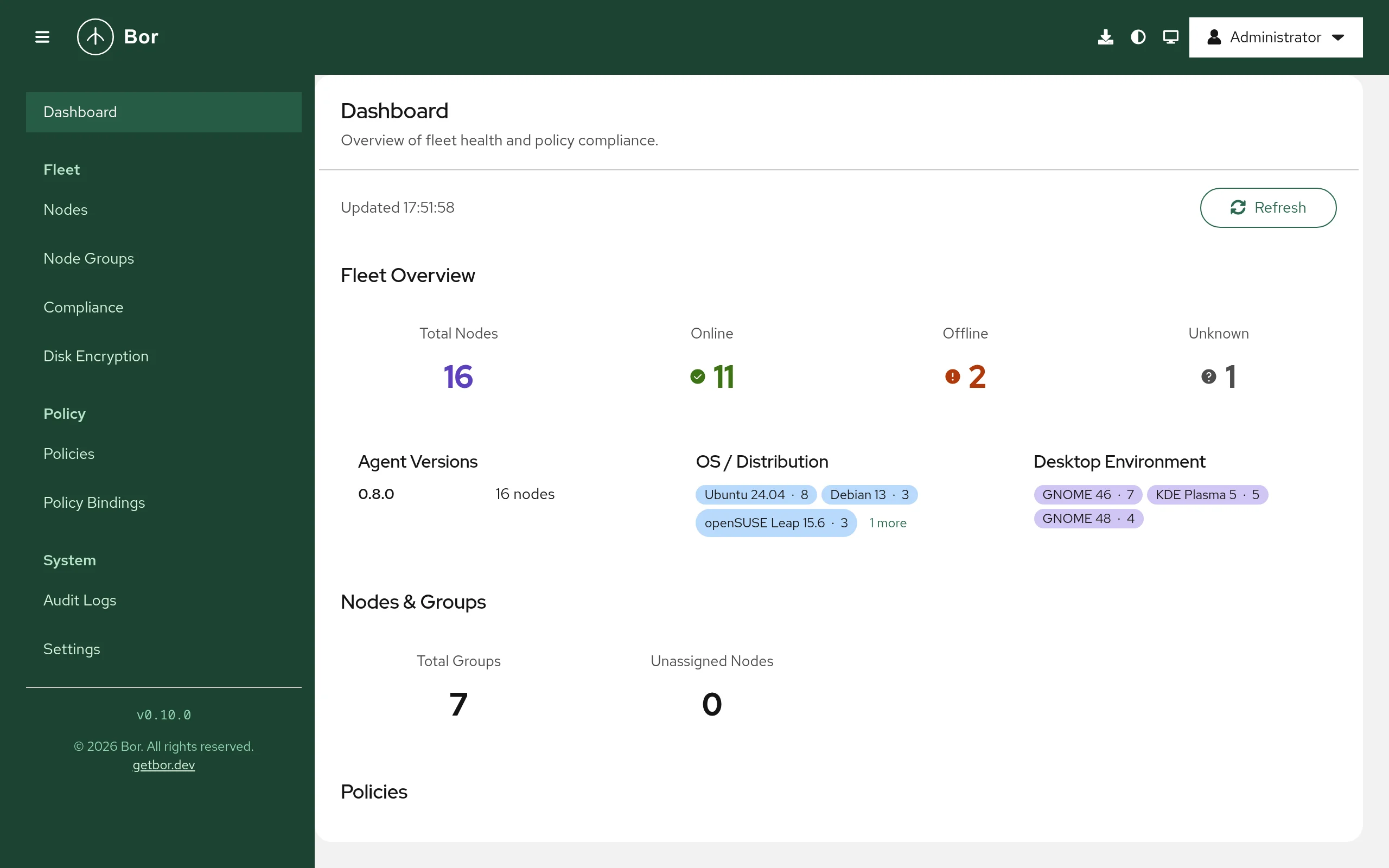
The Dashboard is the start page (/). It refreshes itself every 30
seconds; select Refresh to update immediately. The time of the last
update is shown at the top left. If a refresh fails, the last data stays
on screen with the warning Showing last-known data - the latest refresh
failed and a Retry link.
Many cards are links: select one to open the matching list, already filtered.
Fleet Overview
| Card | Meaning |
|---|---|
| Total Nodes | All enrolled nodes. Opens Nodes. |
| Online | Nodes whose agent currently holds an open policy stream to the server. |
| Offline | Nodes whose agent stream has disconnected. |
| Unknown | Nodes that never connected, for example right after enrollment. |
| Agent Versions | Number of nodes per agent version. Use it to spot nodes that missed an upgrade. |
| OS / Distribution | Number of nodes per operating system. |
| Desktop Environment | Number of nodes per desktop environment. |
| Expired Certificates | Shown only when at least one node's client certificate has expired. Such a node cannot connect until it is re-enrolled. |
| Certificates Expiring Soon | Shown only when node certificates are close to expiry. Agents renew their certificate automatically within 30 days of expiry, so an entry that stays here usually means the node has been offline. |
Nodes & Groups
| Card | Meaning |
|---|---|
| Total Groups | Number of node groups. |
| Unassigned Nodes | Nodes that belong to no node group. Such nodes receive no policies. Highlighted when greater than zero; opens Nodes filtered to unassigned nodes. |
Policies
| Card | Meaning |
|---|---|
| Total Policies | All policies. |
| Released / Draft / Archived | Policies in each lifecycle state. Each card opens Policies filtered by that state. |
| Policy Types | Number of policies per policy type. |
Policy Bindings
| Card | Meaning |
|---|---|
| Total Bindings | All policy-to-group bindings. |
| Enabled / Disabled | Bindings by state. Only enabled bindings deliver policies. |
| Groups Without Policy | Node groups that have no binding. Highlighted when greater than zero. |
| Coverage by Group | For each node group: its node count and every bound policy with the binding state (enabled or disabled). A policy that is not released also shows its state, which tells you the binding has no effect yet. |
Account settings
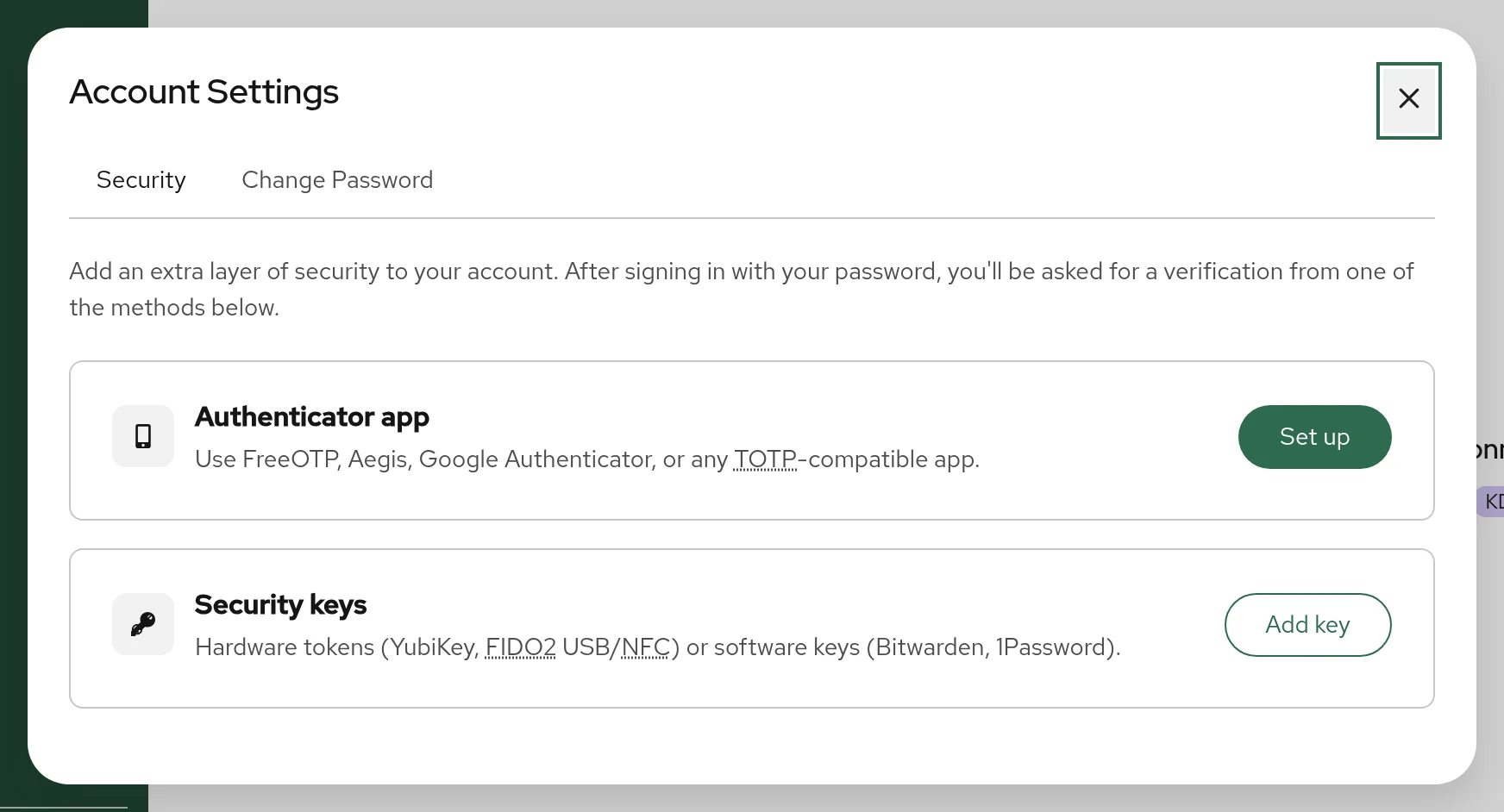
Select your name in the masthead, then Account security. The Account Settings dialog has two tabs.
Security tab
Manage your own second factors:
- Authenticator app
- Select Set up to enroll a TOTP app. The dialog Set up
two-factor authentication shows a QR code and a Manual entry
secret. Scan the code, then type the 6-digit code into Enter 6-digit
code from your authenticator app to confirm. Bor then shows Save
your backup codes: eight one-time codes. Use Copy codes or
Download (saves
bor-backup-codes.txt), store them somewhere safe, and tick I have saved these backup codes in a safe place. When an app is configured it shows Configured; select Remove and confirm with your password (Remove authenticator app) to remove it. - Security keys
- Select Add key to register a hardware key (YubiKey, FIDO2 USB or NFC) or a software passkey. Give it a Security key name. Registered keys can be renamed or removed from the list.
Change Password tab
Shown only for local accounts. Enter your Current password, a New password and Confirm new password, then select Change password. New passwords must be at least 12 characters long. Changing your password signs out all your other sessions. LDAP users change their password in the directory, not in Bor.
Session lifetime
A web session uses two cookies:
- An access token valid for
security.jwt_lifetime(default1h). - A refresh token valid for
security.refresh_lifetime(default24h).
When the access token expires, the browser silently gets a new one with the refresh token, so you are not interrupted. Once the refresh token expires (by default 24 hours after you signed in) you must sign in again. Bor then shows the sign-in page but keeps the address, so after signing in you return to the page you were on.
Sessions end early when you select Log out, when your password is
changed or reset, or when an administrator disables your account. Both
lifetimes are set in /etc/bor/server.yaml or with BOR_JWT_LIFETIME and
BOR_REFRESH_LIFETIME; see Server configuration.
Accessibility
The web UI targets WCAG 2.2 Level AA. It provides a Skip to main content link as the first focusable element, visible focus rings in all themes, labelled icon-only buttons, status messages announced to screen readers, page titles that change with each page, and the high-contrast and dark themes described above. Status is never shown by color alone; labels and icons always carry text.