Policies
A policy is a named, typed set of settings that Bor enforces on nodes, for example Firefox settings, KDE Plasma locks or firewall zones. This page explains the Policies page, creating a policy with the wizard, the editors, the policy lifecycle, editing and deleting policies, and moving policies between servers with export and import.
Open it from Policy -> Policies in the sidebar. Viewing policies
requires policy:view.
Policy types
Each policy has exactly one type. The type decides which editor you get and what the agent changes on the node.
| Type (as shown in the UI) | Category | Reference |
|---|---|---|
| Firefox | Browsers & mail | Firefox |
| Thunderbird | Browsers & mail | Thunderbird |
| Chrome | Browsers & mail | Chrome |
| Microsoft Edge | Browsers & mail | Microsoft Edge |
| KDE Plasma | Desktop environment | KDE Plasma (KConfig) |
| Dconf | Desktop environment | GNOME (dconf) |
| Polkit | System & security | Polkit |
| Firewall | System & security | Firewall (firewalld) |
| Session Access | System & security | Session access |
| Package | System & security | Packages |
| Flatpak apps | System & security | Flatpak |
| Disk encryption | System & security | Disk encryption |
See Policy types for an overview.
The policy list
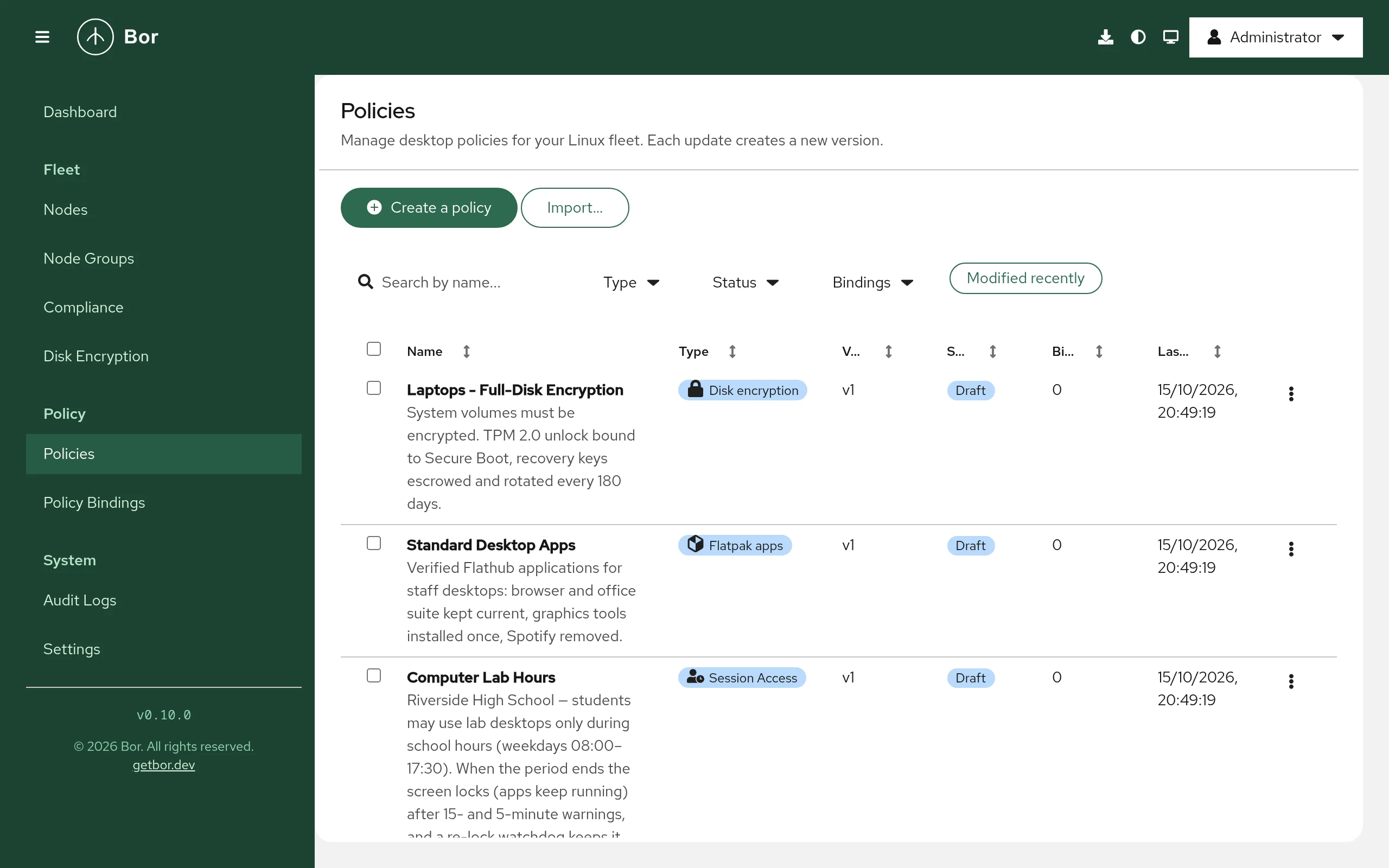
| Column | Content |
|---|---|
| Name | Policy name, with the description underneath. |
| Type | Policy type. |
| Version | Version counter, for example v3. |
| Status | Draft, Released or Archived. A Deprecated label is added when the policy has been marked deprecated through the API. |
| Bindings | Number of bindings to node groups, and how many are enabled. |
| Last Updated | Time of the last change, including state changes. |
All columns except Description can be sorted.
Filter the list
- Search policies by name - free text.
- Type - one or more policy types.
- Status -
draft,released,archived. - Bindings - Has bindings or No bindings.
- Modified recently - only policies changed in the last 7 days.
The Dashboard cards Released, Draft and Archived open this page with the matching status filter.
Row actions and bulk actions
The row menu shows the actions that apply to the policy's state: Release, Unpublish, Archive, Restore to draft, Edit (drafts) or View details (other states), Export policy and Delete.
Tick several policies to use Actions: Release, Unpublish and Archive apply to the selected policies that are eligible and skip the rest (the menu shows how many are eligible), plus Edit (one policy), Export selected and Delete.
Lifecycle
Every policy is in one of three states:
| State | Meaning | Delivered to agents |
|---|---|---|
| Draft | Being written. The only state in which the policy can be edited. New and imported policies always start here. | No |
| Released | Final. Can be bound to node groups. | Yes, through enabled bindings |
| Archived | Retired. Kept for reference. | No |
Allowed transitions:
| Action | From -> To | Condition |
|---|---|---|
| Release | Draft -> Released | The policy has a name, a type and content, and the content passes the server-side validation for its type. |
| Unpublish | Released -> Draft | No enabled bindings. |
| Archive | Released -> Archived | No enabled bindings. |
| Restore to draft | Archived -> Draft | No enabled bindings. |
Release and Archive ask for confirmation. When an action is blocked
by enabled bindings, the row menu shows it greyed out with a tooltip such
as Cannot unpublish: 2 enabled bindings exist. Disable the bindings
first. Disable the bindings on the Policy Bindings page,
then retry.
Changing the state of a policy notifies all agents in node groups with an enabled binding to that policy, so they pick up the change immediately.
Permission used for lifecycle changes
Release, unpublish, archive and restore are authorized with the
policy:edit permission. The seeded policy:release permission is not
currently checked by the server. See Permissions.
Create a policy
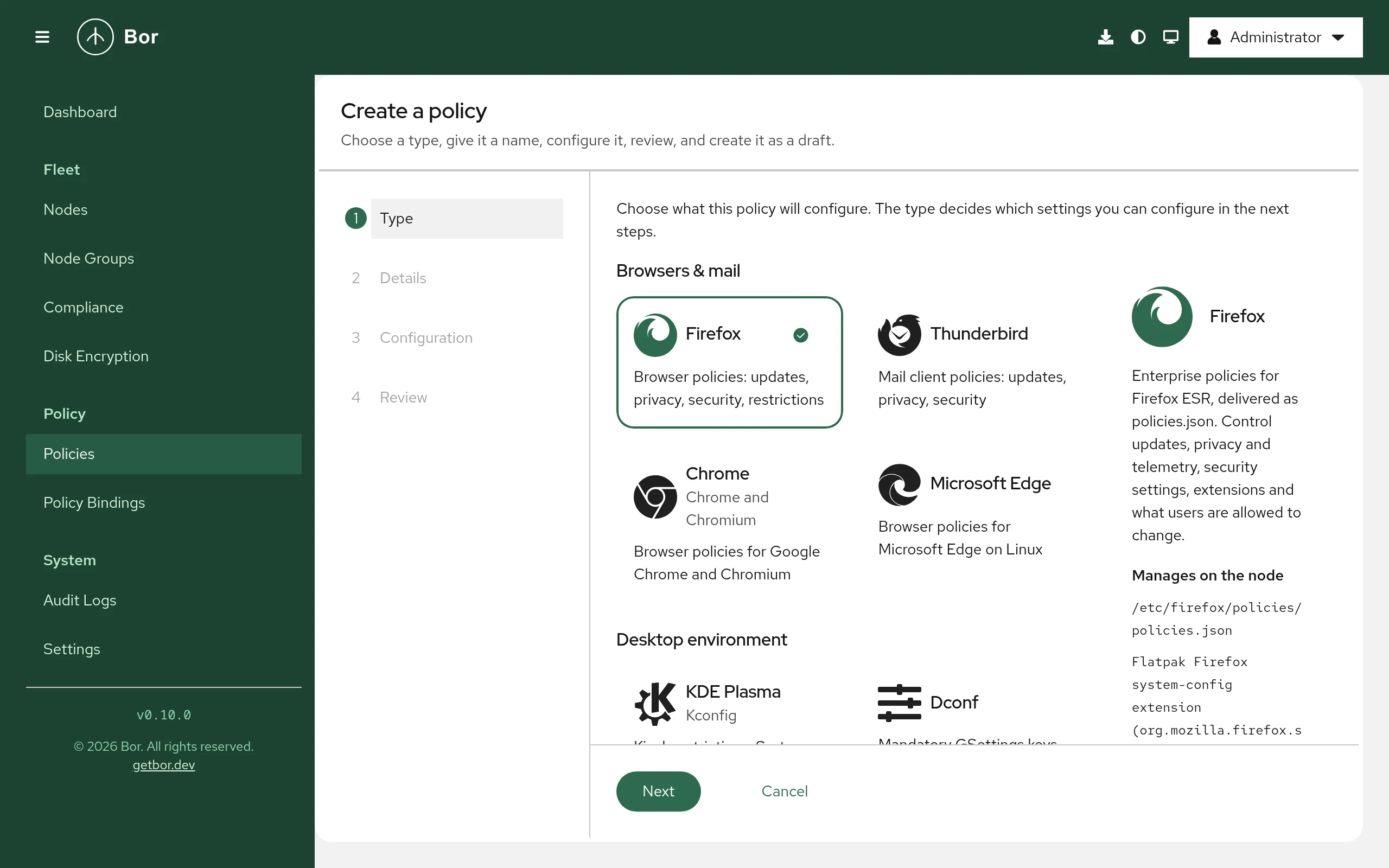
Select Create a policy. The Create a policy wizard has four steps; use Next and Back to move between them.
- Type - choose the policy type from the tiles, grouped into Browsers & mail, Desktop environment and System & security. Each tile describes what the type manages. If you switch the type later in the wizard, Bor asks before clearing the settings you already configured (Change type and clear settings).
- Details - enter a Name (required; it is shown in the policies list and in compliance reports) and an optional Description (why the policy exists, who it targets, who owns it).
- Configuration - set the policy's settings in the type-specific editor (see Editors). You cannot continue while the configuration is invalid.
- Review - check the Type, Name, Description and a table of every configured Setting and Value (and whether it is Locked, for types that support locking). Show policy JSON shows the exact content that will be stored. Select Create policy.
A help panel with documentation for the selected type is available on the Details, Configuration and Review steps.
The policy is created as a draft at version v1. The success page
offers:
- Release now - releases the policy after confirmation.
- Assign to a node group - opens Policy Bindings with the policy preselected in the Create Binding form.
- Open the policy, Create another policy, Back to policies.
Nothing reaches a node until the policy is released and bound to a
node group with an enabled binding. Creating policies requires
policy:create.
If you cancel the wizard after entering data, Bor asks before discarding it (Discard this policy?).
Editors
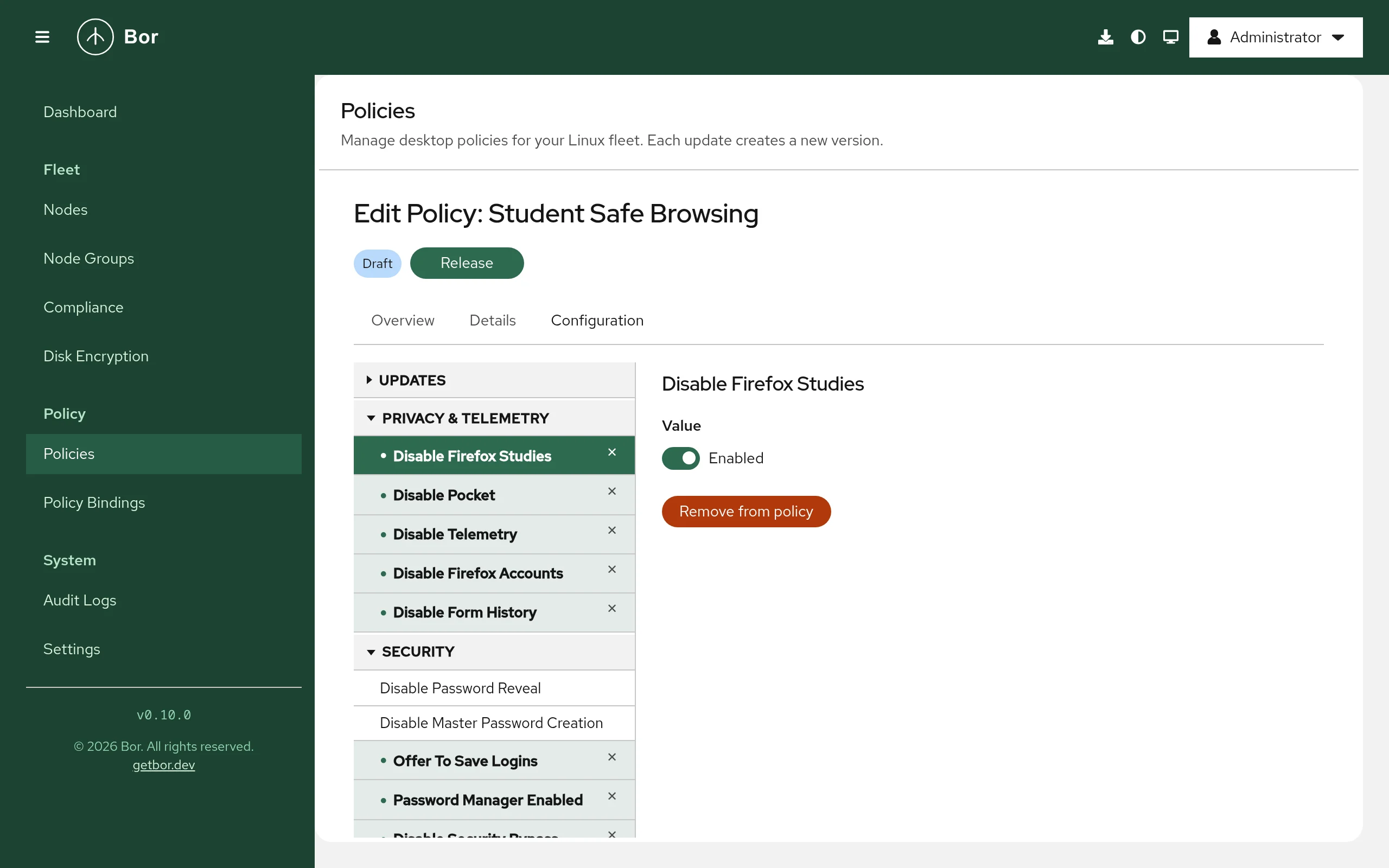
Bor has two kinds of editors:
- Tree editor (Firefox, Thunderbird, Chrome, Microsoft Edge)
- The left side lists every supported browser policy as a tree, grouped by topic. Configured policies are highlighted. Select a policy to see its description and value form on the right. A policy you have not added yet is only previewed: edit its value and select Add to policy. Select Remove from policy to drop a configured policy. List values take One item per line; object values take JSON.
- Type-specific editors (all other types)
- Purpose-built forms for each type, for example a KConfig setting picker with lock options, a dconf schema browser fed by the schemas your agents report, polkit rule builders, firewall zone forms, package and repository lists, a Flatpak application picker, session time windows and LUKS settings. See the page for each type under Policy types.
The editor checks values as you type. The server checks the content again when you release the policy and refuses to release content that does not match the type's schema.
View and edit a policy
Select Edit (drafts) or View details (other states) to open the policy page. It shows the policy name with its state label and the lifecycle buttons that apply (Release, Unpublish, Archive, Restore to draft), and three tabs:
- Overview
- Policy Settings - a table of every configured setting and its value - and the description.
- Details
- Name, Description, Type and State, plus Version, Created by, Last modified and Created at.
- Configuration
- The editor. For policies that are not drafts it is read-only, with the notice that the policy must be moved back to draft to make changes.
For drafts, change the fields and select Save Changes. Each save
increases the version number by one. Lifecycle buttons are disabled while
there are unsaved changes. Editing requires policy:edit.
Change a released policy
Released policies cannot be edited in place, and Bor does not keep earlier versions of the content: the version number is a counter, not a history. To change a released policy:
- On Policy Bindings, disable every enabled binding of the policy. Nodes in those groups stop receiving it, and agents remove its settings.
- Unpublish the policy (it becomes a draft).
- Edit and Save Changes.
- Release it again.
- Enable the bindings again.
Avoid an enforcement gap
To keep nodes covered while you work on a change, export the policy,
change metadata.displayName in the exported file, and import it. The
copy is created as a new draft that you can edit, release and bind
while the original stays in force. Then disable the old binding and
archive the original. See Export and import.
Delete a policy
Select Delete in the row menu (or Actions -> Delete), type the
policy name (or Yes for several policies) and select Delete. The
policy page also has a Delete button.
- A policy with enabled bindings cannot be deleted; disable the bindings first.
- Disabled bindings of the policy are deleted together with it.
- Deletion cannot be undone. Export the policy first if you may need it again.
Requires policy:delete.
Export and import
Policies can be exported to a file and imported on the same or another Bor server, for example to copy policies from a test server to production or to keep them in version control.
Export
- One policy: row menu -> Export policy.
- Several policies: tick them and choose Actions -> Export selected.
The UI exports in YAML and always includes the bindings of the exported
policies. A single policy is saved as <slug>.yaml; several are saved as
bor-policies.yaml. Exporting requires policy:view; bindings are
included only for node groups you may view.
File format
The file is a multi-document YAML stream (documents separated by ---).
Every document has the same envelope:
| Key | Content |
|---|---|
apiVersion |
Always bor.dev/v1. |
kind |
Policy or PolicyBinding. |
metadata.name |
A slug derived from the policy name, unique within the file. |
metadata.displayName |
The policy name (policies only). It wins over metadata.name on import. |
metadata.description |
The policy description (policies only). |
spec |
For Policy: type and content. For PolicyBinding: policy, group and priority. |
Example:
apiVersion: bor.dev/v1
kind: Policy
metadata:
  name: firefox-baseline
  displayName: Firefox baseline
  description: Telemetry and studies off for all desktops
spec:
  type: Firefox
  content:
    DisableFirefoxStudies: true
    DisableTelemetry: true
---
apiVersion: bor.dev/v1
kind: PolicyBinding
metadata:
  name: firefox-baseline-all-desktops
spec:
  policy: firefox-baseline
  group: All Desktops
  priority: 0
Content is normalized on export (known fields only, in a stable order), so exports of the same policy produce the same bytes and diff cleanly in git. The policy state is not exported.
Import
- Select Import... and choose a
.yaml,.ymlor.jsonfile (at most 1 MiB). - Bor validates the file without changing anything and shows Import
preview with one row per document: Doc, Kind, Name,
Status (
created,updated,skippedorerror) and Details. -
Choose what happens when a policy with the same name already exists, under If a policy name already exists:
Option Effect Fail the import (recommended) The document is an error and nothing is imported. Skip that policy The existing policy is kept unchanged. Update the existing draft The existing policy's content is replaced, but only if it is a draft; a released or archived policy is an error. Changing the option re-runs the preview. 4. If the preview is valid, select Import N resources. Otherwise fix the file; if any document has an error, nothing is imported.
Rules:
- Imported policies are always created as drafts. Release them yourself.
- Imported bindings are always created disabled. Enable them on Policy Bindings after releasing the policy.
- A binding's
spec.policyrefers to ametadata.namein the same file or to the name of a policy that already exists on the server. Itsspec.groupmust be the name of an existing node group; node groups are not created by import. - The policy content is checked against the type's schema; unknown policy types are rejected.
- Importing requires
policy:create. Exports and completed imports are recorded in the audit log (policy.export,policy.import).