Nodes
A node is a Linux desktop or laptop running bor-agent that has enrolled
with the server. This page explains the Nodes page: the node list, what
the status values mean, the node details panel, filtering, moving nodes
between node groups, decommissioning a node, and re-enrolling a machine.
Open it from Fleet -> Nodes in the sidebar. Viewing nodes requires the
node:view permission; see Permissions for
the actions below.
The node list
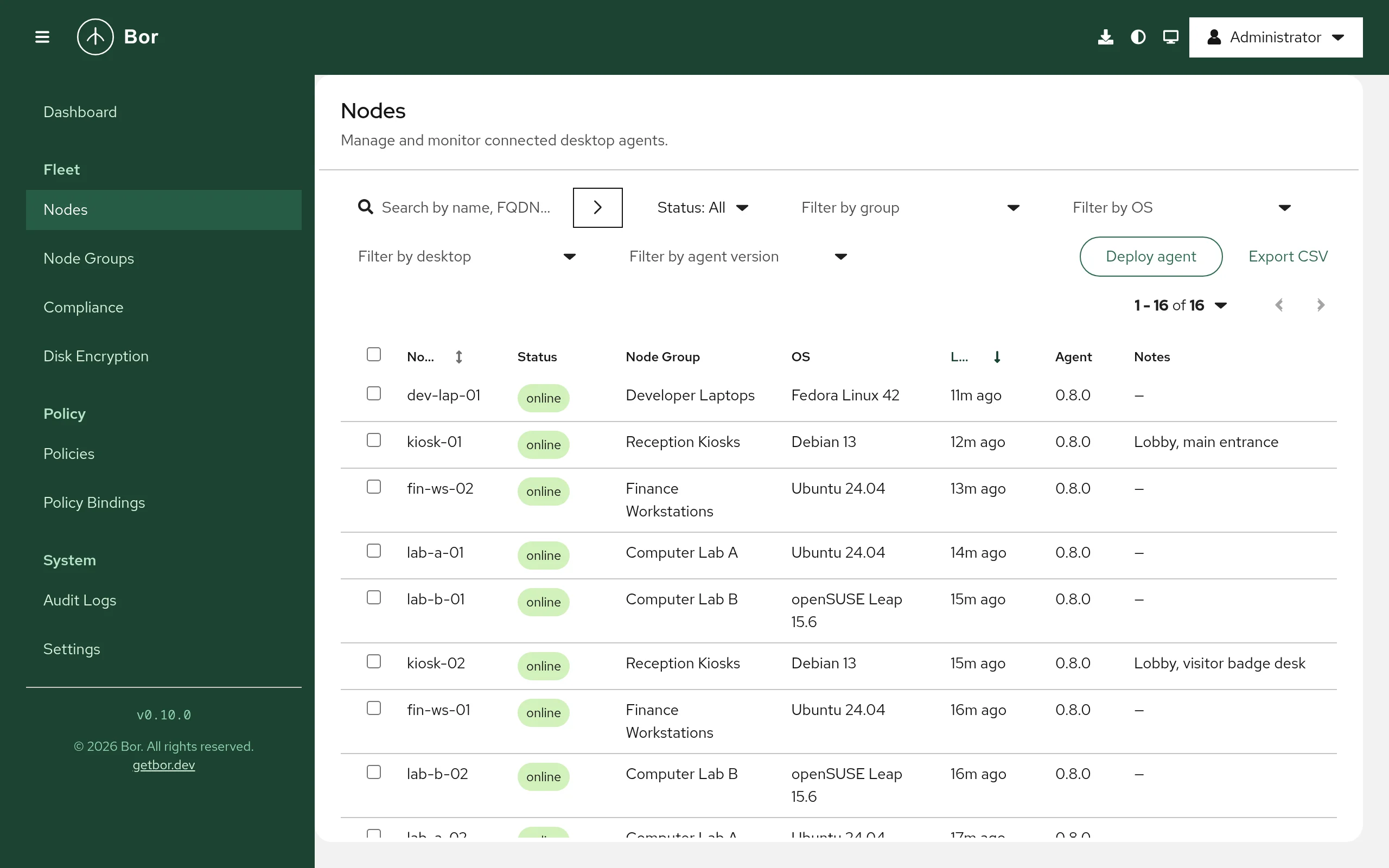
The table shows one row per enrolled node:
| Column | Content |
|---|---|
| Node | The node name. This is the agent's client ID and the common name (CN) of its client certificate, and it is unique on the server. Sortable. |
| Status | online, offline or unknown (see below). Hover the label for the reason. |
| Node Group | The node groups the node belongs to, comma separated. |
| OS | Operating system name and version reported by the agent. |
| Last Seen | How long ago the agent last reported to the server (for example 5m ago, Never). Sortable. |
| Agent | The bor-agent version on the node. |
| Notes | The first characters of the node's note. |
The list is paginated. Use the pagination controls above the table to change the page size.
Node status
| Status | Meaning |
|---|---|
online |
The agent has an open policy stream to the server (port 8444). Policy changes reach it immediately. |
offline |
The agent's stream disconnected. The node keeps enforcing the policies it last received and reconnects automatically with exponential backoff (up to 60 seconds between attempts). |
unknown |
The node never connected, or enrollment is still pending. |
Status is updated when the stream opens or closes. A node that shows
offline for a long time is usually powered off, off the network, or its
agent service is stopped. On the node, check with:
Compliance (whether policies are actually enforced) is tracked separately on the Compliance page.
Search and filter
- Search - type in Search by name, FQDN, IP, group... and press Enter.
- Status -
online,offlineorunknown. - Group - a node group, All Groups, or Unassigned (nodes in no group, which therefore receive no policies).
- OS, Desktop, Agent version - values reported by your agents.
Active filters appear as chips; remove one by closing its chip, or clear all of them at once. The Dashboard cards Online, Offline, Unknown and Unassigned Nodes open this page with the matching filter applied.
Export the list
Select Export CSV to download nodes-export.csv with the name, status,
groups, last seen time, agent version, OS and notes of every node that
matches the current search and filters (all pages). To export only some
nodes, select them with the row checkboxes and choose Actions -> Export
selected (CSV).
Node details
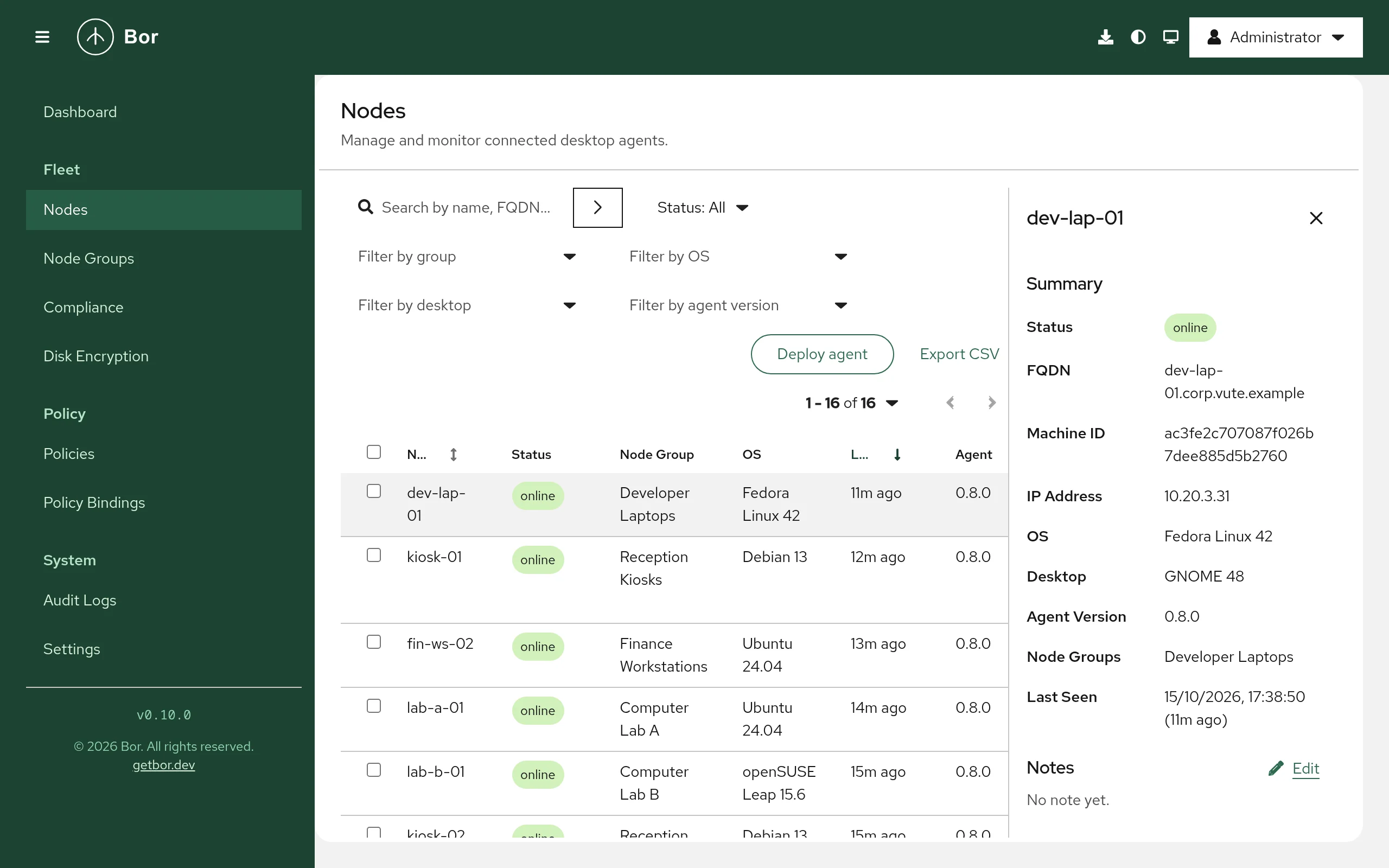
Select a row to open the details panel on the right.
- Summary
- Status, FQDN, Machine ID, IP Address, OS, Desktop, Agent Version, Node Groups and Last Seen (date and relative time).
- Notes
- A free-text note for the node, for example the owner or location.
Select Edit, type the note and select Save. Requires
node:edit. - Certificate
- The client certificate's Serial (last 16 characters) and when it Expires. Agent certificates are valid for 90 days and the agent renews its certificate automatically within 30 days of expiry. The expiry turns to a warning color within 30 days and red once expired.
- Disk encryption
- Shown when you hold
disk_encryption:view: the node's LUKS volumes and recovery key status. See Disk encryption. - Actions
-
- Update metadata - asks the agent to collect fresh system
information (OS, desktop, IP address and so on) and report it. Only
available while the node is
online. - Add to group / Remove from group - see Move nodes between groups.
- Decommission - see Decommission a node.
- Revoke Certificate - see Revoke a certificate.
- Update metadata - asks the agent to collect fresh system
information (OS, desktop, IP address and so on) and report it. Only
available while the node is
Deploy an agent
To add machines, select Deploy agent on this page (or the Deploy agent icon in the masthead). When the list is empty the page offers Deploy your first agent instead. The dialog builds an install script for the platform and architecture you choose and can include the enrollment step for a node group. The button is shown only when the server ships the agent package repository. See Agent installation for the full procedure.
Move nodes between groups
A node can belong to several node groups at the same time; it receives the policies bound to all of them. See Node groups.
To add nodes to a group:
- Select one node and open its details panel, or tick several nodes and open Actions.
- Choose Add to group.
- Pick the Node group and select Assign.
To remove nodes from groups:
- Select the nodes and choose Remove from group.
- Tick the groups to remove them from (when the nodes belong to only one group it is preselected) and select Remove.
Adding nodes needs node:create; removing them needs node:delete.
Group changes take effect on the next agent connection
The server reads a node's group memberships when the agent opens its policy stream. After you move a node, it receives the policies of its new groups the next time the agent reconnects. To apply the change at once, restart the agent on the node:
Then check the node's rows on the Compliance page.
Decommission a node
Decommissioning deletes the node record and revokes its client certificate. Use it when a machine is retired, reinstalled or replaced.
- Select the node and choose Decommission (or tick several nodes and choose Actions -> Decommission).
- In Decommission node, type the node name to confirm. When several
nodes are selected, type
Yesinstead. - Select Decommission.
What happens:
- The server first revokes the node's certificate (reason
node deleted) and then deletes the node and its group memberships. If revocation fails, the node is not deleted. - The revocation is permanent and survives the node deletion, so the old certificate can never be used again, even if someone copies it from the machine.
- Revocations are checked on every request an agent makes, so further
requests with the old certificate are refused (
certificate has been
  revoked
). To manage the machine again, re-enroll it.
Decommissioning requires node:delete.
Revoke a certificate
Revoke Certificate in the node details revokes the node's current client certificate without deleting the node record. Use it when you suspect the machine's credentials are compromised. The panel confirms with Certificate revoked: the agent is denied on its next connection attempt. The node record, its notes and its group memberships remain. To bring the machine back, re-enroll it.
This action requires node:create.
Re-enroll a node
Re-enrollment gives a machine a new certificate, for example after a reinstall, after its certificate was revoked or expired, or after the server's CA changed.
The node name must be unique. If a node record with the same name still
exists, the server rejects the enrollment with a node named "..." already
exists; delete it before re-enrolling. So:
- Decommission the old node record if it still exists.
- Generate an enrollment token for the target node group on Node groups.
-
On the machine, stop the agent, save the token to a file and enroll again. When a token is supplied to an already-enrolled agent, the agent removes its old certificate files first:
-
Check that the node appears on the Nodes page as
online.
The token is valid for 5 minutes and for one enrollment only. See Agent installation for Kerberos-based enrollment, which needs no token.