Node groups
A node group is a named set of nodes. Groups are how policies reach machines: you bind a policy to a node group, and every node in the group receives it. This page covers creating, editing and deleting node groups, how membership works, and generating enrollment tokens.
Open it from Fleet -> Node Groups in the sidebar.
How group membership determines policies
- A node can be a member of any number of node groups, and a group can contain any number of nodes (many-to-many).
- A node receives every policy that is released and has an enabled binding to at least one of its groups. A policy bound to several of the node's groups is delivered once.
- A node in no group (shown as Unassigned) receives no policies.
- When several policies of the same type apply to one node, they are merged on the node. The binding priority decides which value wins for some policy types; see Bindings.
New nodes join the node group of the enrollment token they used. You can add them to more groups later on the Nodes page.
The node group list
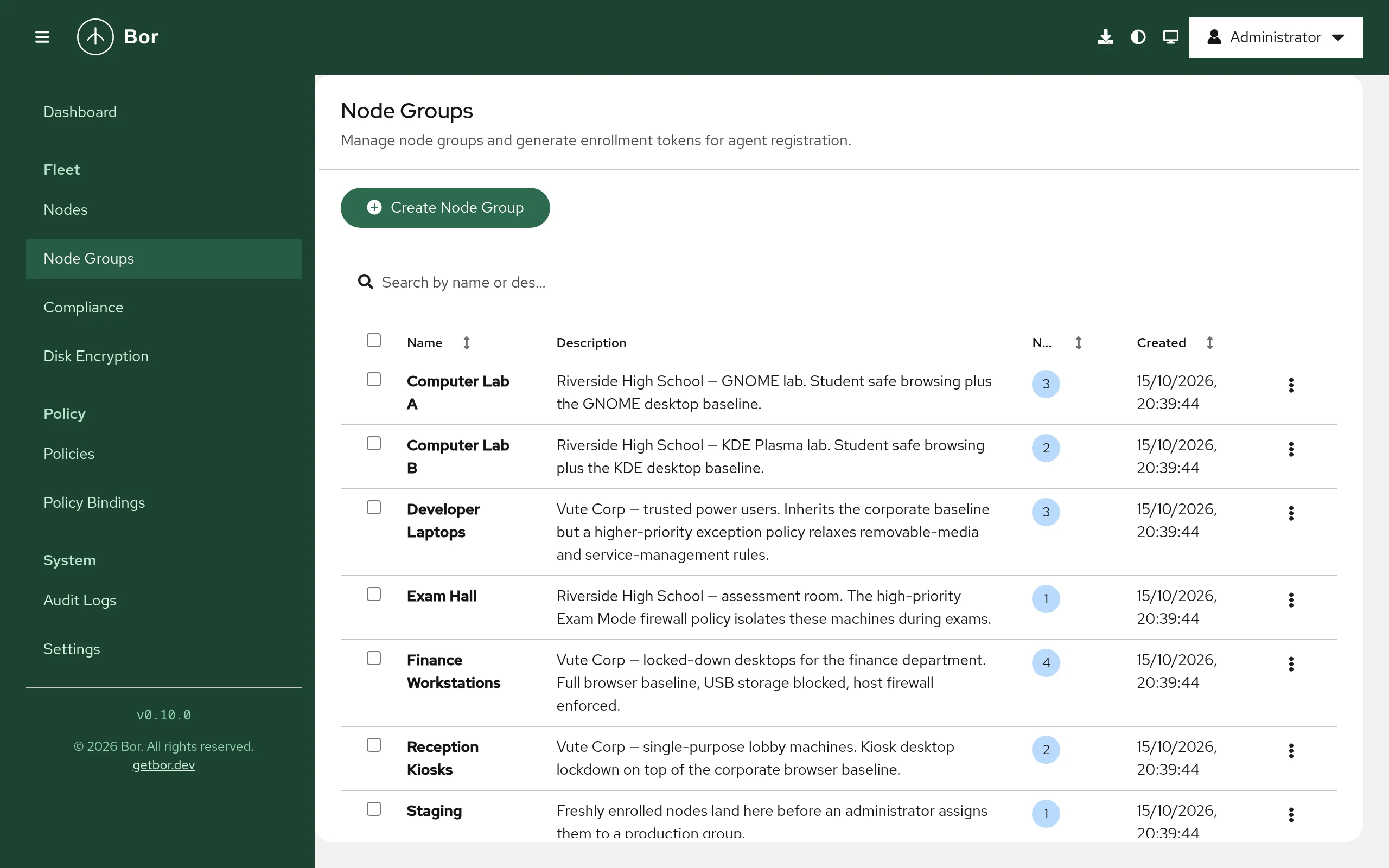
| Column | Content |
|---|---|
| Name | Group name. Sortable. |
| Description | Optional description. |
| Nodes | Number of member nodes. Sortable. |
| Created | Creation time. Sortable. |
Use Search by name or description... to filter the list. The row menu offers Generate token, Edit and Delete. Tick several rows to use Actions for bulk Edit (one row only) and Delete.
Create a node group
- Select Create Node Group.
- Enter a Name (for example
Engineering Desktops) and an optional Description. - Select Create.
Requires node_group:create.
Plan groups around policy needs
Groups are cheap. Typical layouts are by department (Finance,
Engineering), by location (Berlin Office), by hardware or role
(Kiosks, Laptops), plus a broad group such as All Desktops for
baseline policies. Because nodes can be in several groups, you can
combine a baseline group with more specific ones.
Edit a node group
Select Edit in the row menu. You can change the Name and
Description, then select Save. The dialog also shows the Group
ID with a copy button; you need this ID when configuring Kerberos
auto-enrollment (see Kerberos). Requires
node_group:edit.
Delete a node group
- Make sure the group has no member nodes. The server refuses to delete a
group that still has nodes assigned (
cannot delete node group: N
   node(s) still assigned
). Remove the nodes on the Nodes page first, or decommission them. - Select Delete in the row menu (or Actions -> Delete for several groups).
- Type the group name to confirm (
Yeswhen deleting several groups) and select Delete.
All policy bindings of the deleted group are removed with it. Requires
node_group:delete.
Generate an enrollment token
An agent proves it may join the fleet with a one-time enrollment token that is tied to a node group. When the agent enrolls, the server creates the node and adds it to that group.
- In the row menu of the target group, select Generate token.
- Review the token rules shown in the dialog and select Generate Token.
- The dialog shows:
- Enrollment Command - a ready-made
sudo bor-agent --token ...command. - Token Only - the token itself, with a copy button.
- Enrollment Command - a ready-made
- Copy the token and select Done. The token is not shown again after the dialog is closed.
Token rules:
- The token expires 5 minutes after it is generated. The exact expiry time is shown in the dialog.
- The token is single-use: it enrolls exactly one machine.
- Generating a token requires
node_group:create.
Prefer a token file over the command line
The generated command passes the token with --token, which is
deprecated because the token becomes visible in process listings. Save
the token to a root-only file and use --token-file instead:
sudo install -m 0600 /dev/null /root/bor-token
sudoedit /root/bor-token        # paste the token, save
sudo bor-agent --token-file /root/bor-token
sudo systemctl enable --now bor-agent
sudo rm /root/bor-token
The agent also reads the token from the BOR_ENROLLMENT_TOKEN
environment variable. See Agent installation
and the CLI reference.
For many machines, the Deploy agent dialog (masthead or Nodes page) can generate the token for you and produce one script that installs, enrolls and starts the agent. Pick the node group under Enroll into node group... and select Add enrollment step.
Machines joined to FreeIPA or Active Directory can enroll with Kerberos instead of a token; they then land in the group configured on the server. See Kerberos.
Verify
After enrollment, the new node appears on the Nodes page with the group in the Node Group column. The Nodes count of the group increases by one.