Compliance
The Compliance page shows, for every node and every policy it receives, whether the agent managed to enforce the policy. This page explains the compliance states, how and when agents report them, and how to troubleshoot a non-compliant result.
Open it from Fleet -> Compliance in the sidebar. Viewing compliance
requires compliance:view.
How agents report compliance
After the agent applies a policy type (on startup, when it receives a policy change, and after restoring a tampered file), it checks the result and sends one compliance report per policy to the server. The report carries a status, a message and, for many policy types, a per-setting breakdown. The server keeps the latest report for each node and policy, so each row on the page reflects the most recent result.
Only current results are shown: a row appears only while the policy is still delivered to the node through an enabled binding to one of its groups. When you disable a binding or remove a node from a group, the matching rows disappear.
Agents also watch the files they manage. If someone changes a managed file
on the node, the agent restores it immediately, reports the policy again,
and records a tamper_detected event in the audit log.
Compliance states
| State | Meaning |
|---|---|
| Compliant | The policy was applied and the check confirmed the desired state. The message is often Deployed. |
| Non-Compliant | The policy was applied but the node does not match it, for example a setting could not be enforced or a package is not in the requested state. |
| Error | The feature is present on the node, but writing the configuration or running the check failed. The message contains the error. |
| Inapplicable | The policy or a setting does not apply to this node, for example a GNOME schema that is not installed, PackageKit missing on the node, or a dconf key that was overridden by a higher-priority policy. Inapplicable results do not count as failures. |
| Unknown | No conclusive result was reported. |
The Compliance page
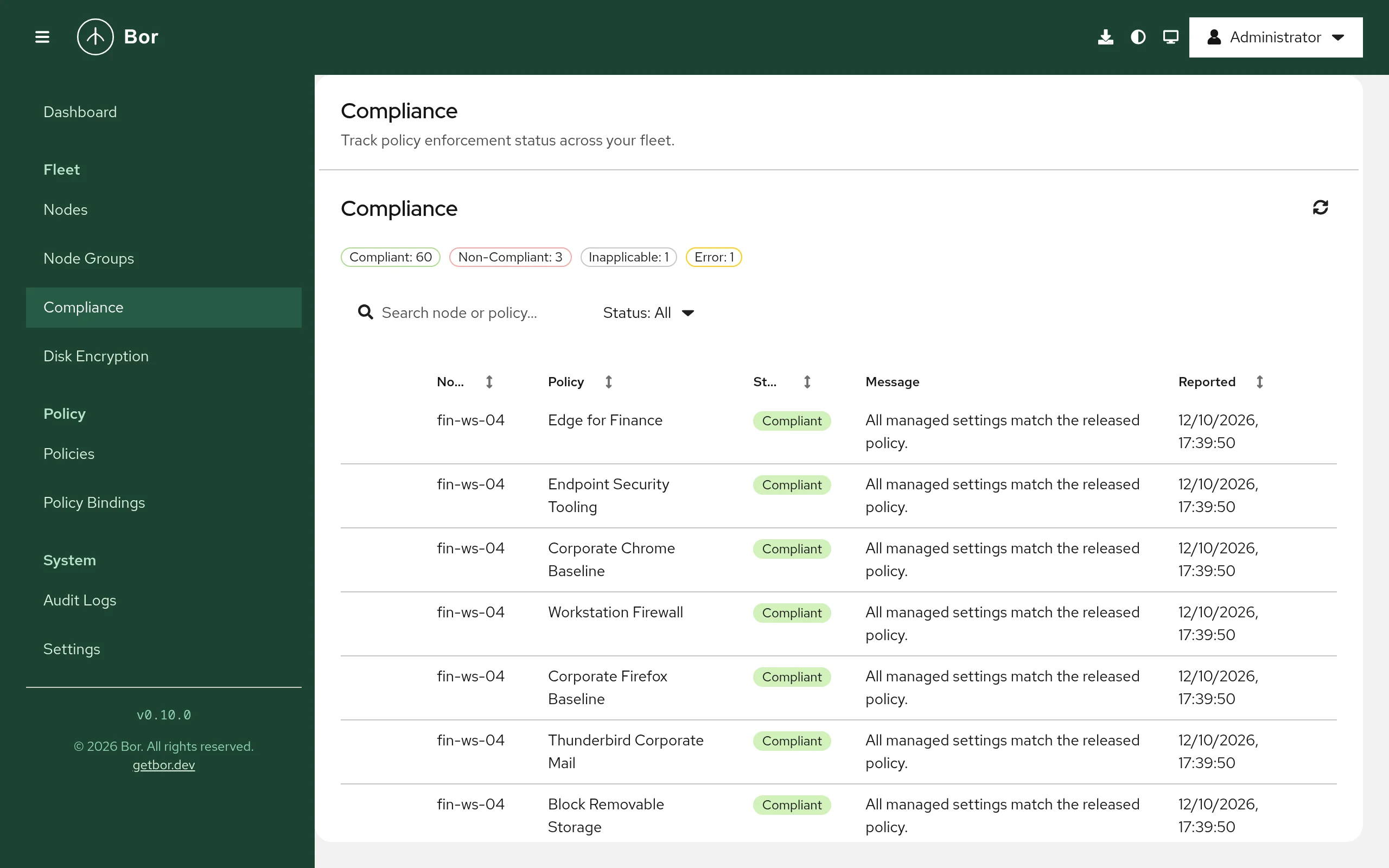
At the top, a chip per state shows how many results are in that state
(for example Non-Compliant: 3). Select a chip to show only that state;
select it again to show all. The refresh button reloads the results.
The table has these columns:
| Column | Content |
|---|---|
| Node | Node name. Sortable. |
| Policy | Policy name. Sortable. |
| Status | One of the states above. Sortable. |
| Message | The agent's summary message. |
| Reported | Time of the report. Sortable. |
Use Search node or policy... to find rows, or the Status filter in the toolbar.
Per-setting breakdown
Rows with details have an expand toggle. Expanding shows a table with one line per Key, its Status and Details, for example:
- dconf keys (shown with their schema summary where known),
- polkit rules,
- Flatpak apps and Flatpak remotes,
- disk encryption items such as Encryption, Cipher, Recovery key, TPM2 protector, Tang protector, TPM 2.0 and Secure Boot.
Use the breakdown to find exactly which setting failed in a policy with many settings.
Troubleshoot non-compliance
- Read the message and the breakdown. Expand the row; the failing key and its details usually name the cause (missing schema, package not found, service not running, permission error).
- Check that the node is online. On the Nodes page the node
must be
onlineto receive changes. An offline node keeps its last report until it reconnects. -
Check what the agent did. On the node:
The agent logs each sync per policy type and any error it hit. 4. Look for overlapping policies. A setting marked Inapplicable with
Overridden by a higher-priority policyis set differently by another policy that won the merge. See Bindings. 5. Check for local tampering. Filter the audit log by actiontamper_detected. Repeated events for the same file mean something on the node keeps rewriting a managed file; the event lists the processes that held the file. 6. Check prerequisites of the policy type. Some types need software on the node (for example PackageKit for packages, firewalld for firewall policies, cryptsetup for disk encryption). See the page of the type under Policy types. 7. Force a fresh sync. Restarting the agent re-applies all policies and reports again:
If a node has no rows at all, it receives no policies: check that it is in a node group and that the group has enabled bindings to released policies. See Node groups and Bindings. For more help, see Troubleshooting.