Multi-factor authentication
Bor supports two second factors for web UI accounts: an authenticator app (TOTP) and security keys or passkeys (WebAuthn/FIDO2). This page covers how users set them up and sign in with them, the MFA policy administrators can enforce, the server configuration that security keys need, the extra check before sensitive actions (step-up authentication), and how to recover an account whose second factor is lost.
MFA applies to local accounts and to LDAP accounts alike.
Set up an authenticator app
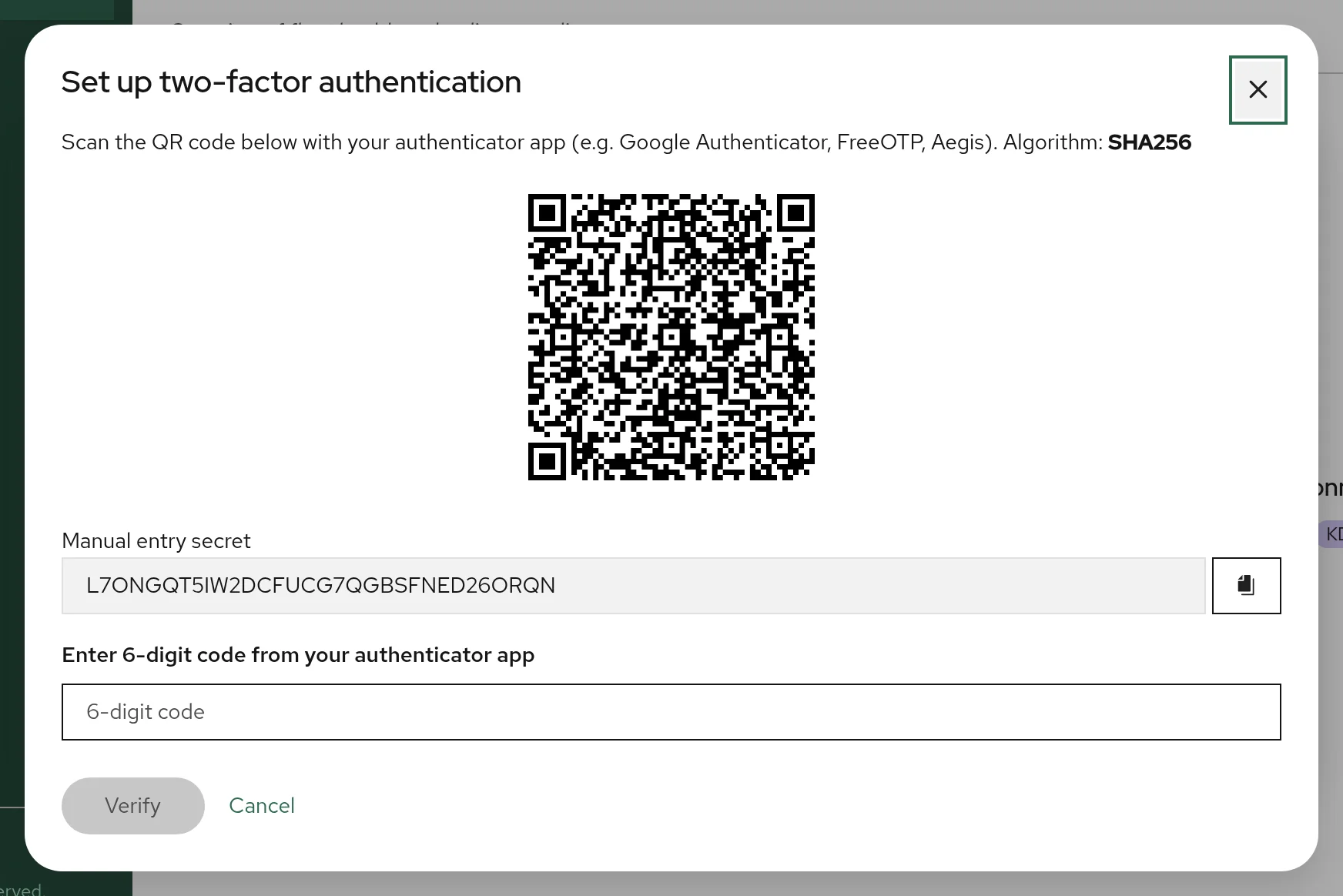
Any app that implements time-based one-time passwords works, for example FreeOTP, Aegis or Google Authenticator. Bor generates 6-digit codes that change every 30 seconds, using SHA-256 by default (SHA-512 if the administrator selected it). Make sure your app supports the algorithm; apps that only implement SHA-1 produce codes that Bor rejects.
- Click your user name in the top right corner and choose Account security. The Account Settings dialog opens on the Security tab.
- Under Method 1: Authenticator app (TOTP), click Set up.
- Scan the QR code with your app. If you cannot scan it, enter the Manual entry secret in the app instead.
- Type the current code from the app into Enter 6-digit code from your authenticator app and click Verify.
- Bor shows eight backup codes (format
XXXXX-XXXXX). Use Copy codes or Download (savesbor-backup-codes.txt) and keep them somewhere safe, away from the device that runs the authenticator app. - Tick I have saved these backup codes in a safe place and click Done.
The Security tab now shows Configured next to the authenticator app.
Each backup code can be used once in place of an authenticator code. Bor stores only hashes of them; if you lose them, remove and set up the authenticator app again to get new ones.
Backup codes at sign-in
The Authenticator code field on the sign-in page accepts only six digits, so backup codes cannot be typed there in the current release. They are accepted where a free-form TOTP field is shown, such as the re-authentication dialog before revealing a recovery key. If you lose your authenticator, ask an administrator to reset your MFA.
Remove the authenticator app
On the Security tab click Remove, enter your password under Confirm your password to remove the authenticator app, and click Remove authenticator app. The backup codes are deleted with it. If the MFA policy requires a second factor and you have no security key, you will be asked to set one up at your next sign-in.
Register a security key
Security keys (YubiKey and other FIDO2 USB/NFC keys) and passkeys stored by
a password manager or the operating system can be used once the server is
configured for WebAuthn. Until then
registering a key fails with WebAuthn not configured.
- Open Account security from the user menu.
- Under Method 2: Security keys (WebAuthn), click Add key.
- Enter a Security key name that tells your keys apart, for example
YubiKey 5 blue, and click Register. - Follow the browser prompt: insert and touch the key, or confirm with the passkey provider.
- The dialog shows Security key registered. Click Done.
Register at least two keys, or a key and an authenticator app, so that losing one does not lock you out. Registered keys are listed on the Security tab, where each can be renamed or removed with the buttons next to it.
Sign in with a second factor
The sign-in page asks for the second factor before the password:
- Enter your Username and click Continue.
- If you have a second factor, Bor asks for it:
- With a security key registered, click Authenticate with security key and use the key. If you also have an authenticator app, Use authenticator code instead switches to the code form.
- Otherwise enter the 6-digit Authenticator code and click Verify.
- After an authenticator code, enter your Password and click Log in.
A security key completes the sign-in on its own: no password is asked after it. For LDAP accounts this also means the directory is not contacted, so group-to-role synchronization runs only at sign-ins that use the password.
Users without a second factor go straight from the user name to the password.
MFA policy (administrators)
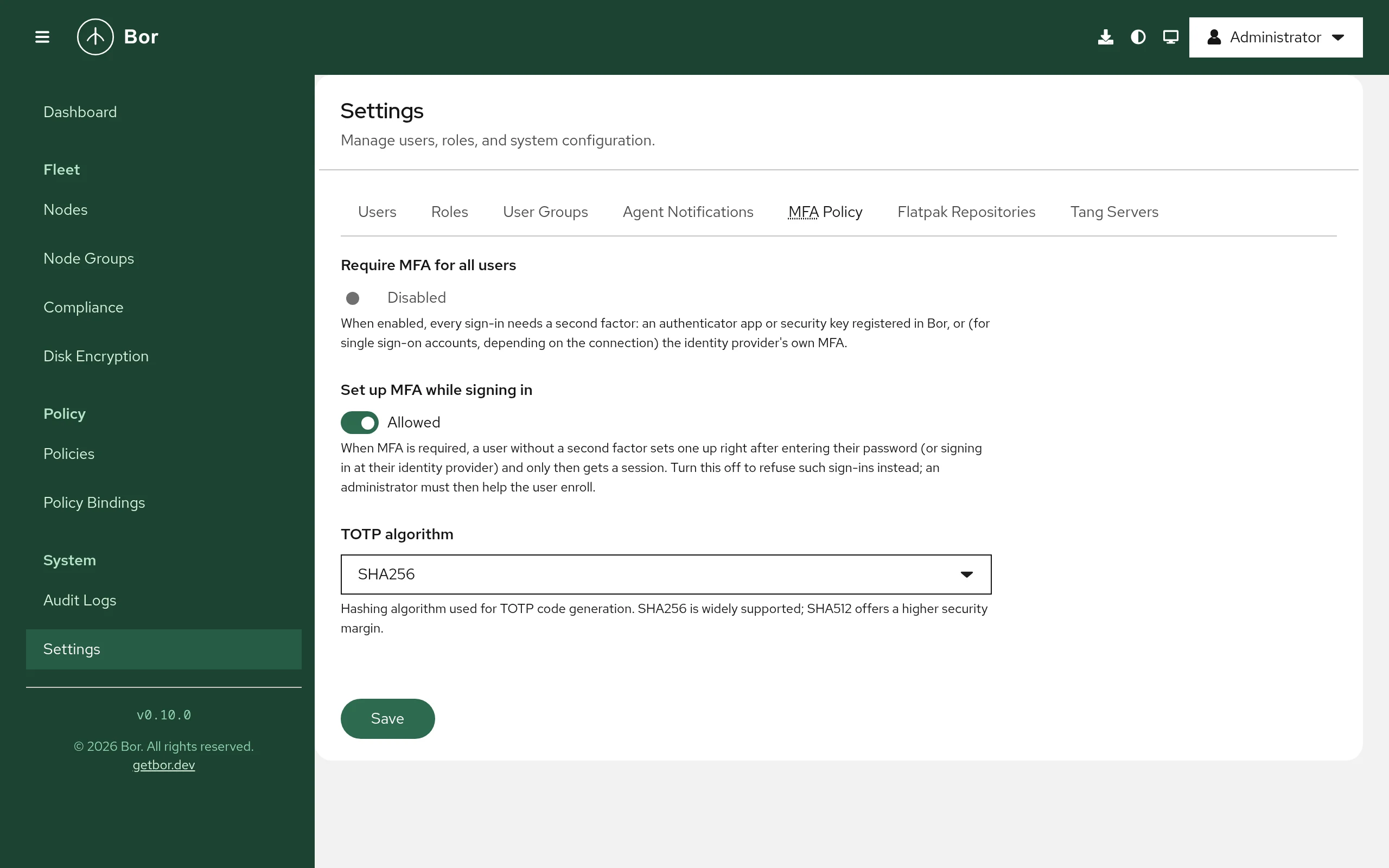
Administrators with the settings:manage permission configure the policy
under Settings -> MFA Policy. Changes are recorded in the audit log.
| Setting | Default | Effect |
|---|---|---|
| Require MFA for all users | Disabled | When enabled, every sign-in needs a second factor registered in Bor. Users who already have one are unaffected. |
| Set up MFA while signing in | Allowed | When MFA is required and a user has no second factor: if allowed, the user enters the password and is then guided to set up an authenticator app (Set up an authenticator app) or a security key (Use a security key) before getting a session. If not allowed, the sign-in is refused after the password check and an administrator must help the user enroll. |
| TOTP algorithm | SHA256 | Hash algorithm for new authenticator app enrollments: SHA256 or SHA512. Existing enrollments keep the algorithm they were created with. |
Click Save to apply. The policy takes effect at the next sign-in; it does not end existing sessions.
Roll out MFA safely
- Make sure your own account has two factors (for example an authenticator app and a security key).
- Announce the change and keep Set up MFA while signing in allowed, so users can enroll on their own.
- Enable Require MFA for all users.
- Keep shell access to the server for the reset procedure.
Configure WebAuthn on the server
Browsers bind security keys to the site name, so the server must know the
exact name and URL users open. Add a webauthn section to
/etc/bor/server.yaml:
webauthn:
  rpid: "bor.example.com"
  origins:
    - "https://bor.example.com"
  display_name: "Bor Policy Manager"
| YAML key | Environment variable | Default | Description |
|---|---|---|---|
webauthn.rpid |
BOR_WEBAUTHN_RPID |
"" |
Relying party ID: the host name in the browser's address bar, without https:// and without a port. Empty disables security keys. |
webauthn.origins |
BOR_WEBAUTHN_ORIGINS |
https://<rpid> |
Every origin users open, exactly as the browser shows it: scheme, host and port. Comma-separated in the environment variable. |
webauthn.display_name |
BOR_WEBAUTHN_DISPLAY_NAME |
Bor Policy Manager |
Name the browser shows in its prompt. |
Rules that matter:
- List the origin exactly as users open it. With the recommended web port
443 that is
https://bor.example.com(no port), as in the example. If the server uses the default web port 8443 (or any port other than 443), listhttps://bor.example.com:8443; otherwise registration and sign-in fail with an origin mismatch. - When
webauthn.originsis empty, the server useshttps://<rpid>, which implies port 443, and logs a warning about the default at startup. Set the origin explicitly to avoid the warning. - Browsers allow WebAuthn only on HTTPS with a certificate they trust. With the auto-generated certificate, trust the Bor CA first.
- The RP ID cannot be an IP address. Use a DNS name.
- Keys are bound to the RP ID. Changing
rpidlater makes every registered key unusable; users must register their keys again. - If users reach Bor under several names, list each origin. All of them must be the RP ID itself or a subdomain of it.
Restart the server and check the log for WebAuthn enabled (RPID=...):
Step-up authentication
Some actions are sensitive enough that a valid session is not sufficient. For these, Bor asks the user to re-authenticate and issues a single-use token that is valid for 5 minutes and only for that one action.
Currently this applies to revealing a LUKS recovery key (see Disk encryption). The Reveal recovery key dialog asks for:
- Reason or ticket number, stored in the audit log,
- Your password (for LDAP accounts, checked against the directory),
- a TOTP code from the authenticator app.
The TOTP rules are:
| User has an authenticator app | disk_encryption.require_mfa_for_reveal |
Result |
|---|---|---|
| Yes | any | Password and TOTP code (or a backup code) are required. |
| No | true (default) |
Refused with enroll MFA (TOTP) to perform this action. |
| No | false |
Password alone is enough. |
Note
Only the authenticator app counts for step-up authentication. A user who
has only security keys must also set up an authenticator app before
revealing recovery keys while require_mfa_for_reveal is true.
Reset MFA for a locked-out user
When a user has lost their authenticator app and backup codes, an administrator with root access to the Bor server removes the user's authenticator app enrollment from the command line:
How the command works:
- It reads the same configuration as the service:
/etc/bor/server.yaml(orBOR_CONFIG) plus environment variables, connects to the database, deletes the user's TOTP secret and backup codes, and exits. It does not start the server; the running service is not affected. - It runs as
borso that it can readserver.yaml(mode0640, groupbor) and so that PostgreSQL peer authentication over the local socket maps it to thebordatabase role. -
It does not read
/etc/bor/server.env, which only systemd loads. If your database password or host is set there, export the file first: -
The reset is not written to the Bor audit log. Record it in your own change log.
After the reset the user signs in with the password only. If Require MFA for all users is enabled and Set up MFA while signing in is allowed, the user is asked to set up a new factor right after the password.
Security keys are not removed
--reset-mfa removes only the authenticator app. Registered security
keys stay, and while a user has one, the sign-in page keeps asking for
it. If the user has lost their security keys as well, delete them in the
database:
sudo -u bor psql -h /var/run/postgresql bor -c \
  "DELETE FROM user_webauthn_credentials WHERE user_id = (SELECT id FROM users WHERE username = 'alice');"
Use the connection settings from your database section if you do not
use the local socket.
To recover the built-in admin account the same way, run the command with
admin as the user name.