Settings
The Settings page holds user and access management and the
server-wide settings that are changed at runtime from the web UI. This
page describes each tab. Settings that are read from
/etc/bor/server.yaml at startup are described in
Server configuration instead.
Open it from System -> Settings in the sidebar. Each tab is shown only
to users who hold the permission listed below; the page opens on the first
tab you can see, and the selected tab is kept in the address (?tab=) so
you can bookmark it.
| Tab | Needed permission | Purpose |
|---|---|---|
| Users | user:view |
Local and LDAP user accounts |
| Roles | role:view |
Built-in and custom roles |
| User Groups | user_group:view |
Groups of users for role assignment |
| Agent Notifications | settings:manage |
Desktop notifications shown on nodes after policy changes |
| MFA Policy | settings:manage |
Whether multi-factor authentication is mandatory |
| Flatpak Repositories | flatpak_repo:view |
Repository catalog for the Flatpak policy editor |
| Tang Servers | tang_server:view |
Tang servers for network-bound disk unlocking |
Your own password and MFA
Changing your own password and setting up your own authenticator app or security key is not done here but in Account security in the account menu of the masthead. See Web UI.
Users
Create, edit, enable, disable and delete user accounts, reset local passwords and assign roles. See Users and roles.
Roles
Review the built-in roles and create custom roles with a permission matrix. See Users and roles.
User Groups
Group users and assign roles to the whole group. See Users and roles.
Agent Notifications
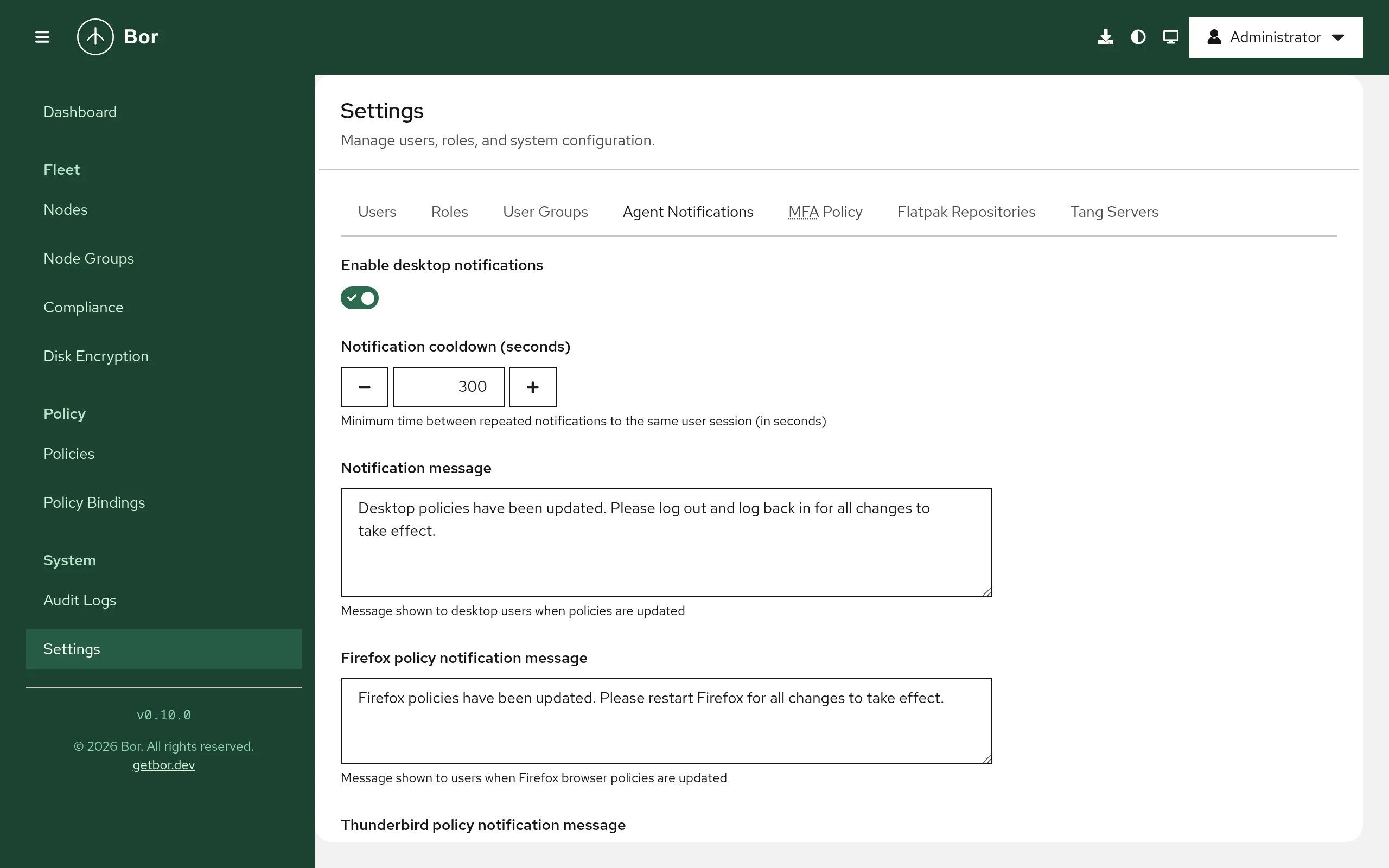
When an agent applies changed policies, it can show a desktop notification to the users logged in on the node, asking them to log out or restart an application so that every change takes effect. This tab controls those notifications for the whole fleet.
| Field | Meaning |
|---|---|
| Enable desktop notifications | Turns the notifications on or off. |
| Notification cooldown (seconds) | Minimum time between repeated notifications to the same user session. Minimum 60; default 300. |
| Notification message | Shown when desktop policies change. Default: Desktop policies have been updated. Please log out and log back in for all changes to take effect. |
| Firefox policy notification message | Shown when Firefox policies change. |
| Thunderbird policy notification message | Shown when Thunderbird policies change. |
| Chrome/Chromium policy notification message | Shown when Chrome or Chromium policies change. |
| Microsoft Edge policy notification message | Shown when Microsoft Edge policies change. |
Select Save to store the settings.
Tip
Keep the cooldown high enough that users are not interrupted by several notifications while you roll out a series of changes, and write the messages in the language your users read.
MFA Policy
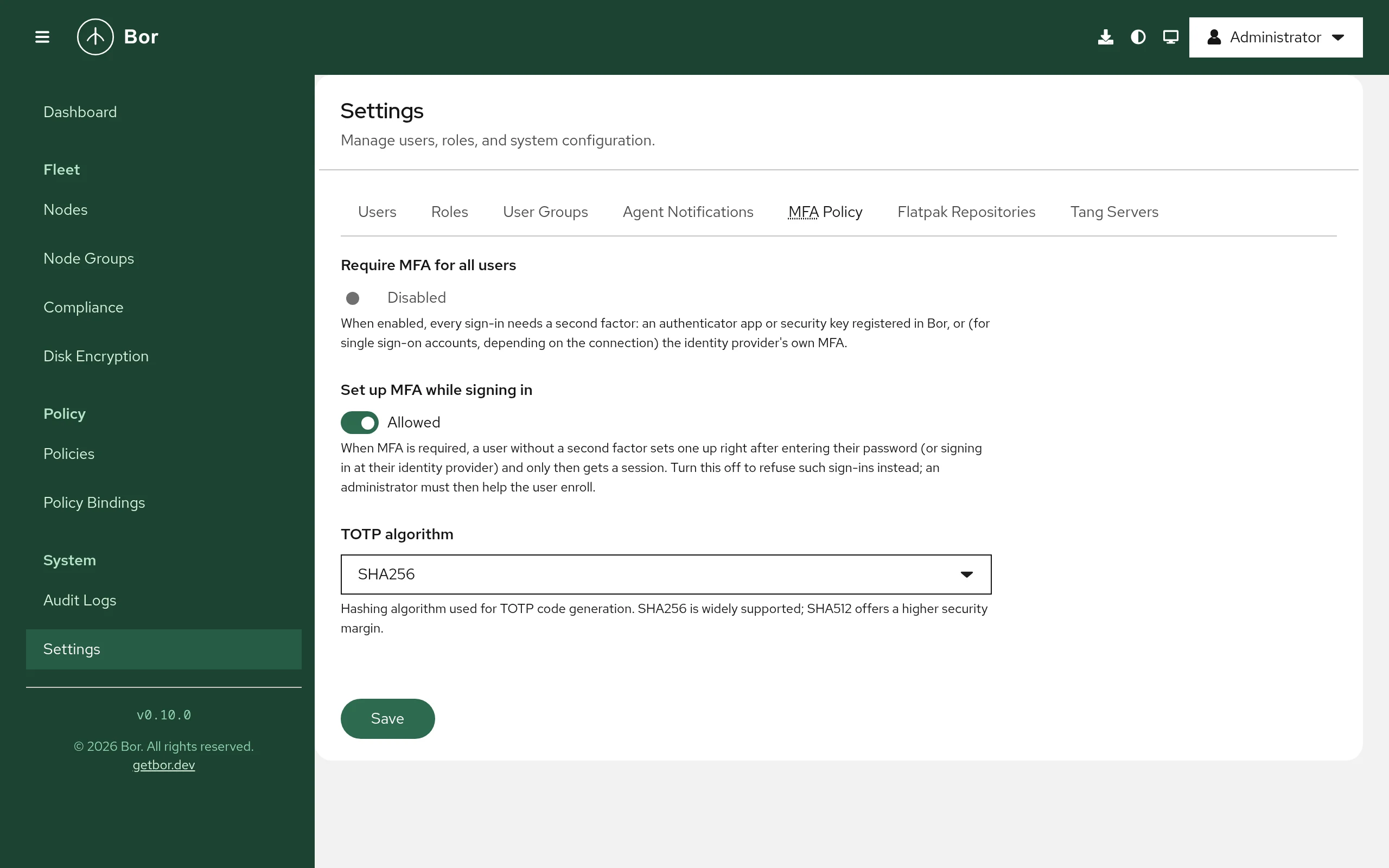
Controls multi-factor authentication for web UI sign-in.
| Field | Meaning |
|---|---|
| Require MFA for all users | When Enabled, every sign-in needs a second factor (an authenticator app or a security key registered in Bor). |
| Set up MFA while signing in | When Allowed and MFA is required, a user without a second factor enrolls one right after entering their password and only then gets a session. When Not allowed, such sign-ins are refused and an administrator must help the user enroll. |
| TOTP algorithm | Hash algorithm for authenticator app codes: SHA256 or SHA512. SHA256 is widely supported by authenticator apps; SHA512 has a higher security margin. Check that your users' apps support the algorithm before changing it. |
Select Save to apply. Before requiring MFA, enroll your own
administrator account (Account security), and keep a second
administrator account enrolled. If an administrator loses their
authenticator, reset it on the server with
sudo bor-server --reset-mfa <username>. See
MFA configuration.
Flatpak Repositories
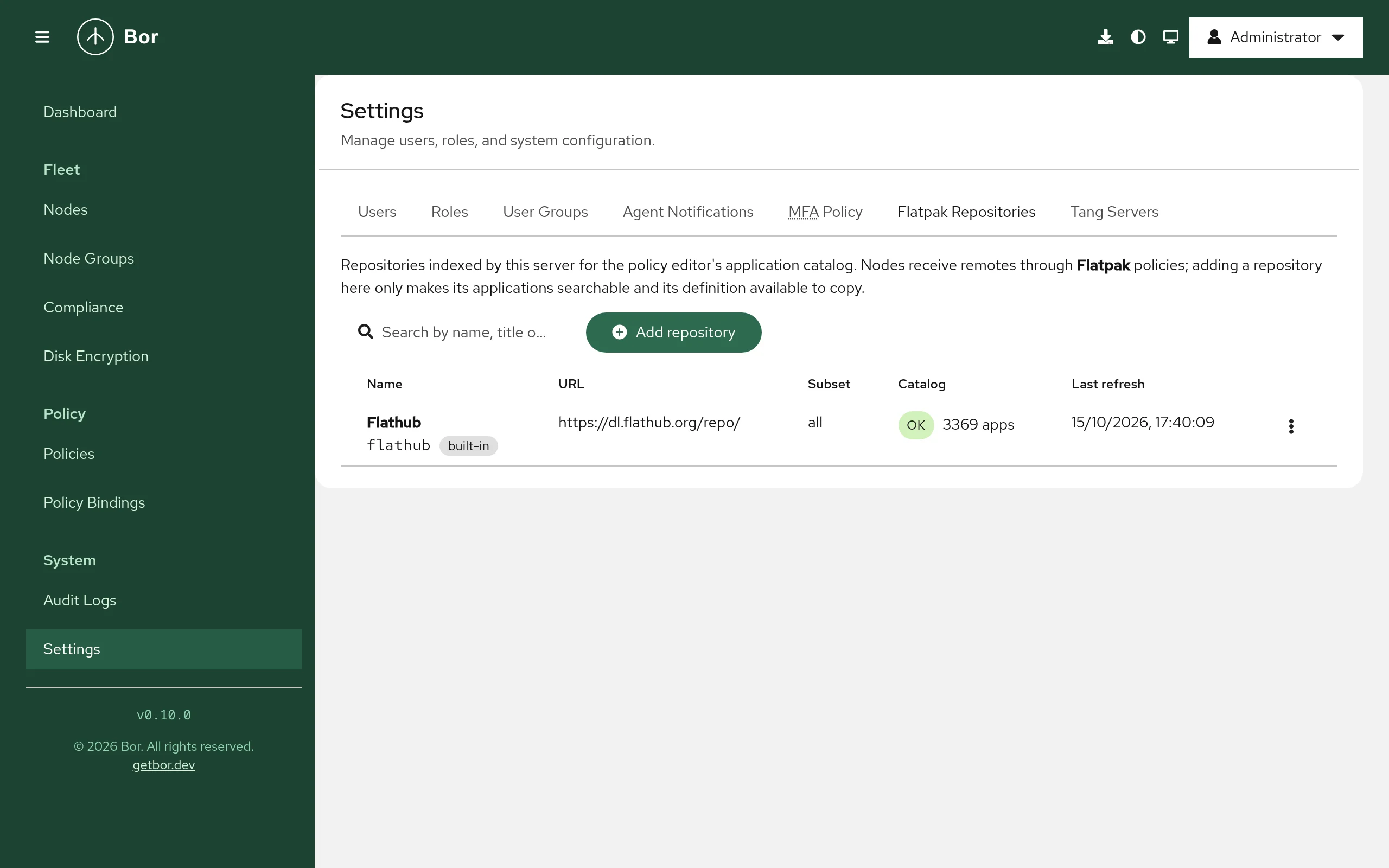
The server indexes the applications of Flatpak repositories so that the Flatpak policy editor can search them and copy a repository definition into a policy. Adding a repository here does not add it to any node; nodes receive remotes only through Flatpak policies. Flathub is preconfigured.
The list shows Name, URL, Subset, Catalog (indexing status, or Catalog off) and Last refresh. The row menu offers:
- Refresh now - download and re-index the repository's catalog now
(needs
flatpak_repo:refresh). - Upload catalog... - import a catalog file downloaded elsewhere (needs
flatpak_repo:refresh). - Edit (needs
flatpak_repo:edit). - Delete - type the repository name to confirm. Policies that already
copied the remote keep working. Built-in repositories cannot be deleted;
turn their catalog off instead (needs
flatpak_repo:delete).
Add a repository
- Select Add repository (needs
flatpak_repo:create). - Optionally fill the form from a repository file: paste its URL into Import from .flatpakrepo URL and select Import, or use a preset such as Flathub Beta.
-
Check or enter:
Field Meaning Name Suggested remote name for policies, for example flathub.Title Display name. Repository URL The repository URL, for example https://dl.flathub.org/repo/.Subset Suggested subset for policies that copy this repository. Does not affect indexing. GPG public key Key file ( .gpg,.asc,.key,.pub). Copied into policies that add this remote so nodes verify downloads.Catalog Index this repository's applications on or off. Refresh interval (hours) How often the catalog is re-indexed, 1-720. Architectures x86_64,aarch64,i686. Each is indexed separately.Under Advanced: AppStream URL override (default
<URL>/appstream/<arch>/appstream.xml.gz,{arch}is replaced per architecture), Collection ID, Default branch, GPG key fingerprint (optional), Homepage, Comment, Description and Icon URL. 4. Select Add repository.
Upload a catalog (offline servers)
If the server has no outbound internet access, disable outbound catalog
downloads with flatpak_catalog.refresh_enabled: false (or
BOR_FLATPAK_CATALOG_REFRESH=false); the tab then shows a notice and
Refresh now is unavailable. Import catalogs manually instead:
- On a machine with internet access, download the repository's
appstream.xml.gzfor the architecture you need, for examplehttps://dl.flathub.org/repo/appstream/x86_64/appstream.xml.gz. - In the repository's row menu, select Upload catalog....
- Choose the Architecture and the Catalog file (appstream.xml.gz) (gzip-compressed AppStream XML, at most 64 MiB).
- Select Upload and index. The upload replaces the indexed apps of that architecture; a notice reports how many applications were indexed.
Tang Servers
Tang servers let LUKS volumes unlock automatically while the machine is on your network. This tab is the registry of Tang servers that Disk encryption policies can bind volumes to. The confirmed signing keys of each server are copied into the policies.
The list shows Name, URL, Trusted keys (each key thumbprint
marked preferred or accepted, with the number of volumes bound to it),
Status (Never checked, OK, New key advertised, Error)
and Last check.
Add a Tang server
- Select Add Tang server (needs
tang_server:create). - Enter a Name and the URL, for example
http://tang1.example.com. Tang uses plain HTTP by design; the exchange never reveals key material. - Select Probe to fetch the server's advertisement.
- Under Signing keys, compare each thumbprint with the output of
tang-show-keyson the Tang host, and tick only the keys that match. Agents refuse to bind to keys you have not confirmed. - Select Add server.
Check and rotate keys
- Check advertisement in the row menu fetches the current
advertisement again (needs
tang_server:edit). If the server advertises a key you have not confirmed, the status becomes New key advertised and the row menu offers Confirm new key.... Verify the new thumbprint on the Tang host and confirm it. - After rotating keys on the Tang host, delete the old key there only when its bound-volume count on this tab reaches zero.
- Delete removes the server from the registry (type the name to
confirm; needs
tang_server:delete).
Extension panels
Server extensions can add their own tabs to this page. The community edition does not ship any extension, so no such tab is shown there.