Users and roles
Bor controls who may do what in the web UI with role-based access control (RBAC). Users get permissions through roles, either assigned to them directly or through user groups. This page covers local and LDAP users, user groups, the built-in roles, custom roles, role assignments, and the safeguards that prevent privilege escalation and lock-outs.
All of this is managed under System -> Settings on the Users, Roles and User Groups tabs. The full list of permissions is in the Permissions reference.
How access works
- A permission is a
resource:actionpair, for examplepolicy:editornode:view. - A role is a named set of permissions.
- A role assignment (role binding) gives a role to a user or to a user group. Members of a user group hold every role assigned to the group.
- A user's effective permissions are the union of all roles assigned to them directly and through their groups.
Community edition: global scope only
In the community edition every role assignment is global: it applies to all nodes, node groups and policies. Assignments limited to specific node groups are not available. Where such a scoped assignment exists in the database (for example from another edition), the UI labels it as inactive in this edition and it grants nothing.
The initial administrator
On first start, when the user table is empty, the server creates the local
user admin with the Super Admin role. The password is taken from
security.admin_password in /etc/bor/server.yaml (or
BOR_ADMIN_PASSWORD); the distribution packages generate a random one at
installation and print it. If no password is configured at all, the server
generates one and writes it to /var/lib/bor/initial_admin_password
(mode 0600) instead of logging it. Sign in as admin, then change the password in
Account security -> Change Password (see
Web UI).
Create personal accounts for every administrator rather than sharing
admin, so the audit log shows who did what.
Local users
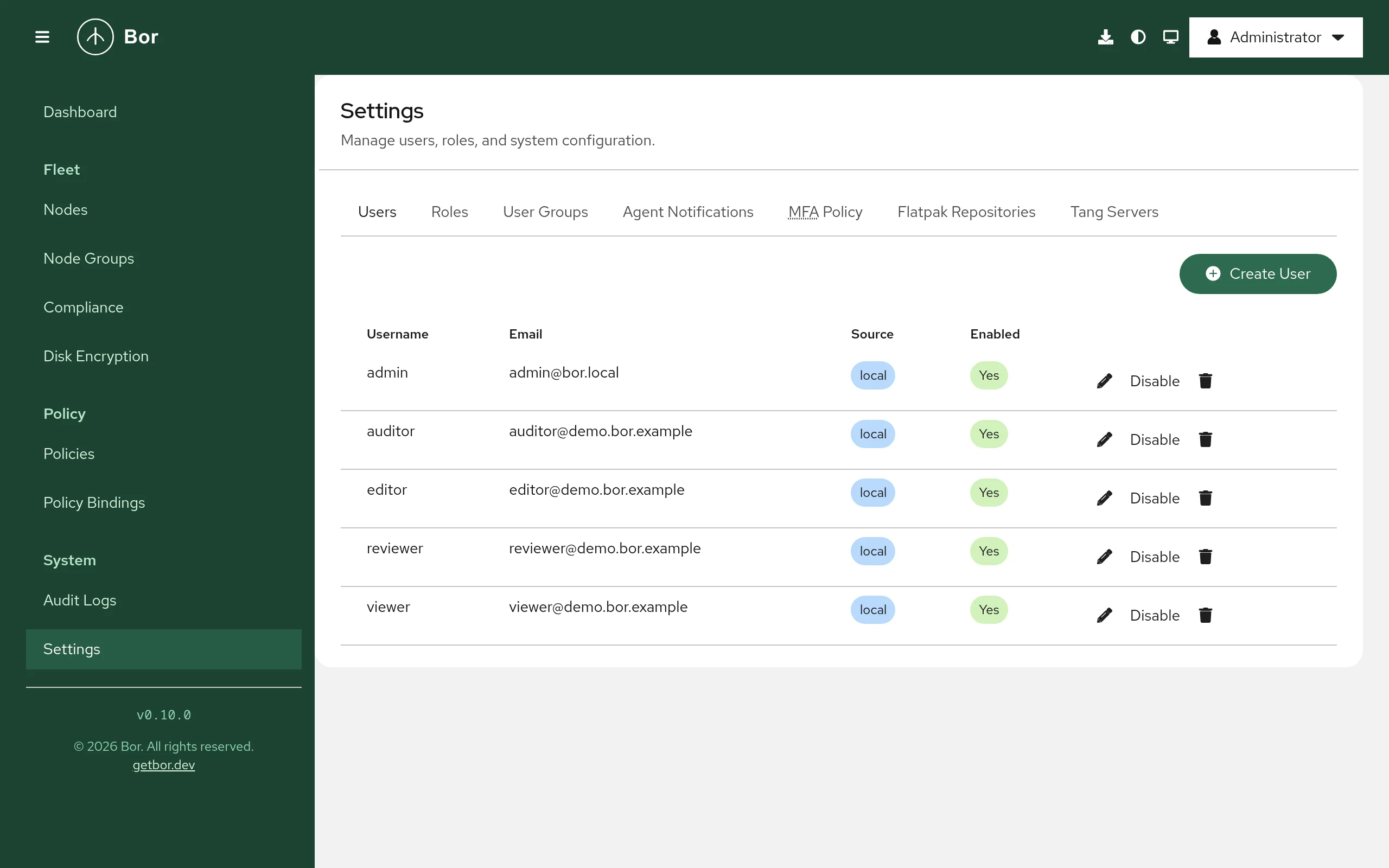
Create a user
- Go to Settings -> Users and select Create User.
- Enter the Username, optional Email and Full Name, and a Password of at least 12 characters.
- Select Create.
- Edit the new user (pencil icon) and assign roles on the Role Assignments tab (see Assign roles). A user without roles can sign in but sees almost nothing.
Requires user:create.
The user list
| Column | Content |
|---|---|
| Username | Sign-in name. |
| Email address. | |
| Source | local (password stored by Bor) or ldap (password checked against the directory). |
| Enabled | Yes or No. Disabled users cannot sign in. |
Row actions: the pencil icon (Edit), Disable / Enable, and the trash icon (Delete).
Edit a user
The Edit User dialog has these tabs:
- Profile - Email, Full Name and Enabled.
- Role Assignments - the roles assigned directly to the user.
- Password (local users only) - set a New password and Confirm new password, then select Set password. The user does not need the old password. Use this to reset a forgotten password.
Editing requires user:edit.
Disable or delete a user
- Disable keeps the account and its role assignments but blocks sign-in. All of the user's existing sessions are revoked immediately.
- Delete removes the user and their role assignments permanently. The
dialog Delete user? requires you to type the username. Requires
user:delete.
Setting a new password for a user also revokes all of their sessions.
LDAP users
When LDAP is enabled (see LDAP), directory users
sign in with their directory password. On their first successful sign-in,
Bor creates the account with source ldap, copying email and full name
from the directory; these are refreshed on every sign-in. LDAP users:
- have no Password tab and cannot change their password in Bor,
- can be disabled in Bor, which blocks their sign-in even if the directory still accepts the password,
- can be given roles manually like local users, or automatically from their directory groups.
Roles from LDAP groups
With ldap.group_role_map in /etc/bor/server.yaml (or
BOR_LDAP_GROUP_ROLE_MAP), Bor maps directory groups to roles. At every
sign-in it compares the user's directory groups with the map, adds the
mapped role assignments the user should have and removes mapped ones the
user no longer qualifies for. Role assignments that are not produced by the
map (assigned by an administrator) are never touched.
User groups
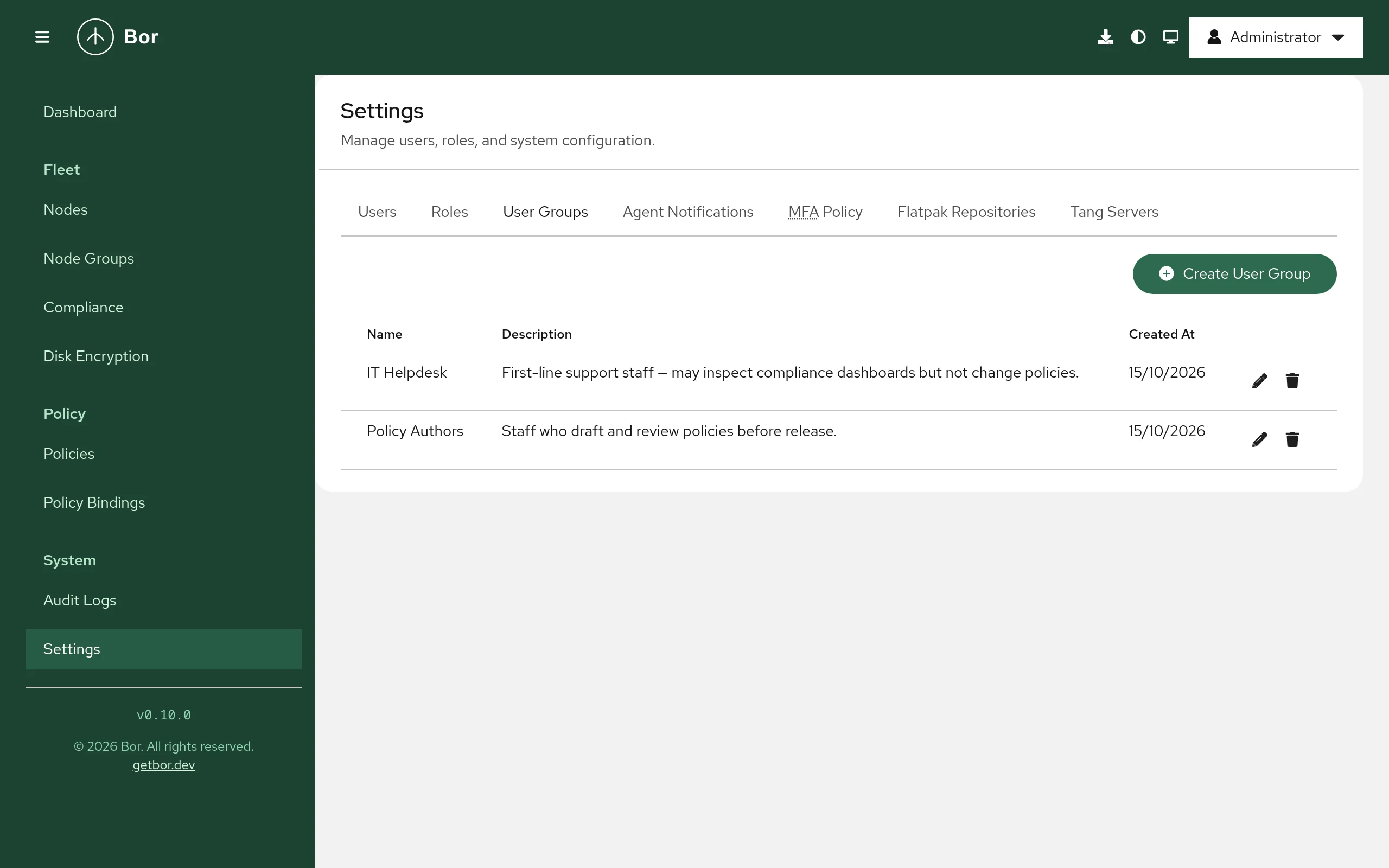
User groups let you assign roles to many users at once.
- Go to Settings -> User Groups and select Create User Group.
- Enter a Name and an optional Description, then select Create.
- Edit the group (pencil icon). The Edit User Group dialog has three
tabs:
- Details - name and description.
- Members - Add Member to pick a User; remove members from the list.
- Role Assignments - Add Role to assign a role to the whole group.
Deleting a group (type the group name to confirm) removes the group and its role assignments; the member users are not deleted.
Managing groups requires user_group:view, user_group:create,
user_group:edit and user_group:delete as appropriate.
Built-in roles
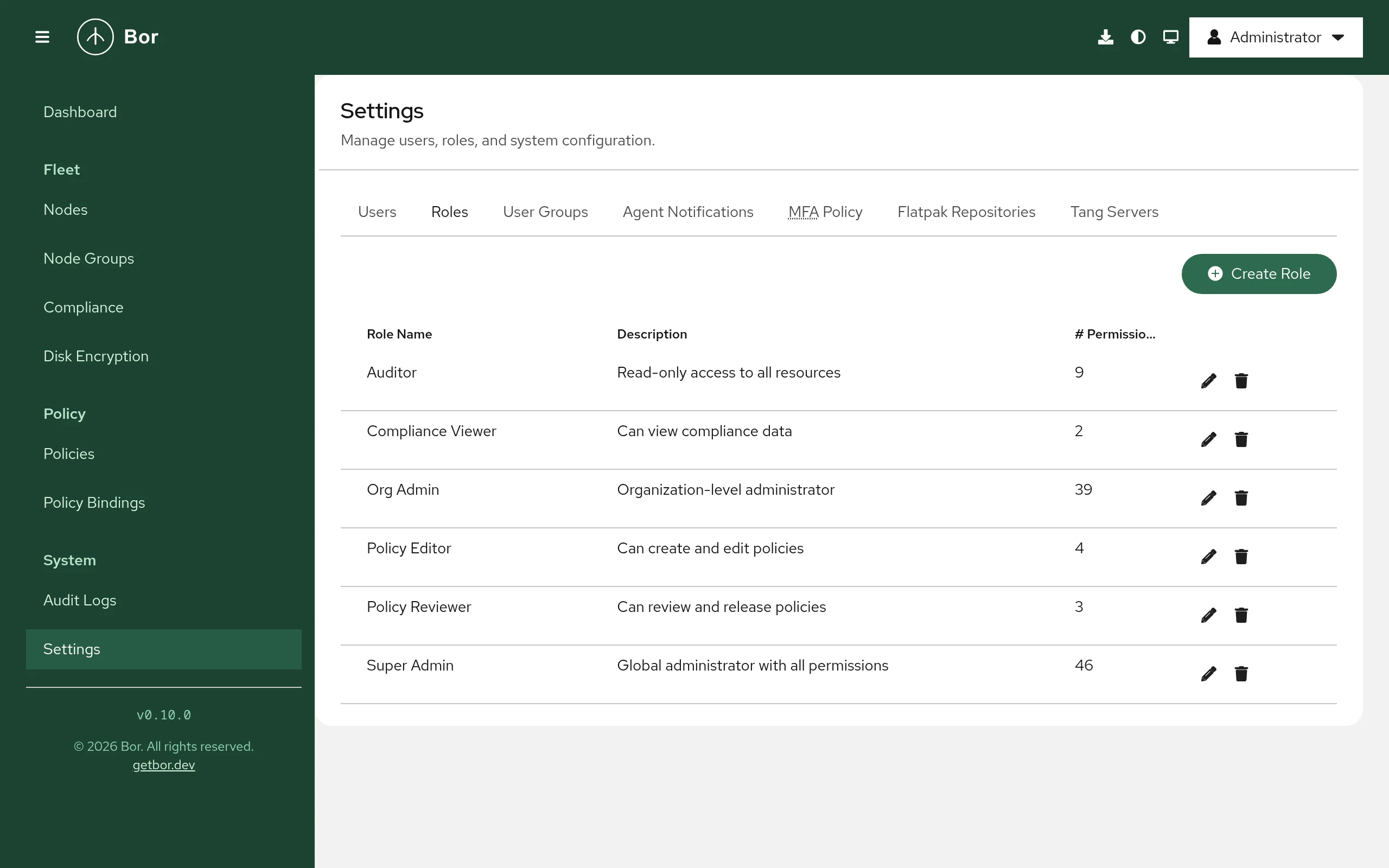
Bor ships six built-in roles. Their permissions are fixed: the server
refuses to change or delete them (built-in roles cannot be modified).
| Role | Purpose |
|---|---|
| Super Admin | Global administrator with every permission, including revealing and rotating disk encryption recovery keys. |
| Org Admin | Day-to-day administrator: policies, bindings, nodes, node groups, users, user groups, audit logs, system settings, Flatpak repositories and Tang servers. Cannot view or edit roles and cannot reveal or rotate recovery keys. |
| Policy Editor | Writes policies: create, edit and view policies, and view bindings. Cannot bind or delete policies. Because lifecycle changes are authorized by policy:edit, it can also release policies (see the warning below). |
| Policy Reviewer | Intended to review and release policies: holds policy:view, policy:release and binding:view. |
| Compliance Viewer | Views compliance results and policies. |
| Auditor | Read-only access: views policies, bindings, compliance, nodes, node groups, user groups, disk encryption status and audit logs, and can export audit logs. |
The exact permission matrix is in the Permissions reference.
Release is authorized by policy:edit
The server currently checks policy:edit, not policy:release, for
releasing, unpublishing, archiving and restoring policies. As a result
the Policy Editor role can release policies and the Policy
Reviewer role cannot. Plan your role design accordingly.
Custom roles
Create a custom role when the built-in roles do not fit, for example a help-desk role that can view nodes and update node notes.
- Go to Settings -> Roles and select Create Role.
- Enter a Role Name and an optional Description, then select Create.
- Edit the new role (pencil icon). The Permission Matrix lists every permission grouped by resource; tick the actions the role should have.
- Select Save.
The Roles list shows the Role Name, Description and # Permissions of each role. Deleting a role (type the role name to confirm) also removes it from every user and group that had it.
Viewing roles requires role:view; creating, editing and deleting them
require role:create, role:edit and role:delete.
Assign roles
To a user:
- Settings -> Users, edit the user, open Role Assignments.
- Select Add Role, choose the Role and select Add.
- To remove an assignment, use the remove button in its row.
To a user group: the same steps on the group's Role Assignments tab.
Assigning roles to users (and removing them) requires user:manage. On a
user group, adding members or role assignments requires user_group:create
and removing them requires user_group:delete.
Safeguards
Privilege-escalation guard
You can only hand out permissions you hold yourself:
- Assigning a role to a user or a user group is refused if the role
contains any permission you do not hold (
cannot assign a role that
  grants permissions you do not hold at this scope
). - Adding a member to a user group is refused unless you could assign every role the group carries yourself; otherwise anyone who can edit groups could join a group with more rights.
- Setting the permissions of a custom role is refused if it would add a permission you do not hold.
- Built-in roles cannot be modified or deleted, so nobody can widen them.
Refused attempts are recorded in the audit log as
access_denied events.
Last Super Admin protection
The server refuses any change that would leave the system without a user
holding a global Super Admin assignment: deleting, disabling, or
removing the Super Admin role from the last such user fails with
operation would remove the last Super Admin from the system. Grant
Super Admin to a second account before retiring the first.
If all administrators are locked out of MFA, use
bor-server --reset-mfa <username> on the server (see
CLI reference).
Type-to-confirm deletes
Every destructive action asks you to type a confirmation before the
Delete (or Decommission) button becomes active: the exact name of
the user, role, group, policy, node or node group, the text `